Kingston HyperX Cloud II Headset review
3. Audio experience
The HyperX Cloud may be used in both USB and 3.5mm configurations, and is compatible with PCs, Macs, the PlayStation 4, mobile devices, and the Xbox One with a dedicated adapter.
For optimal use with PlayStation 4, unplug the headset jack from the USB control box and connect audio jack on the headset directly to the PS4 game controller. Navigate to the Settings Menu, highlight the ‘Devices’ menu option, scroll down to 'Audio Devices' , choose 'Output to Headphones' and select 'All Audio.'
To use the HyperX Cloud II headset with Xbox One, you will need the Xbox One adapter (sold separately) that plugs into the Xbox One controller Because this adapter has built-in volume controls, you will remove the USB control box and connect directly to the Xbox One controller.
In order to connect the headset to your PC, connect the headset’s 3.5mm audio jack to the input jack on the USB control box. The USB
control box then connects to a computer using the USB connector on the end of the
control box.
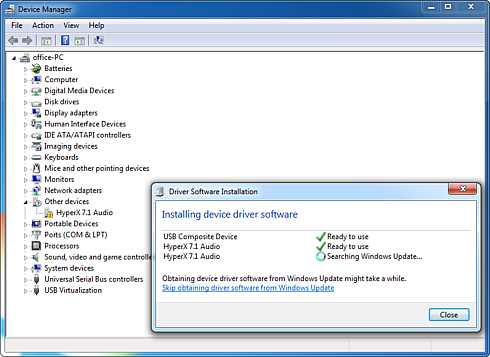
As you see below, no extra drivers were required for installation under Windows 7:


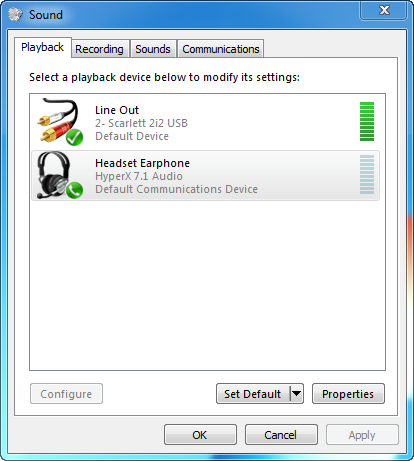
The next step is to ensure that HyperX Cloud II is the default audio device. For Windows users, open up Control Panel and select Hardware
and Sound and then select Sound.. If the “HyperX 7.1 Audio” is not currently the
default audio device, right-click on the option
and select "Set as Default Device." Repeat the same steps for the microphone portion
of the headset, located under the "Recording" tab
(also found in the Sound program in Control Panel.)
MAC users should also ensure that HyperX Cloud II is the default audio device. All you need to do is to click the Apple menu and select
"System Preferences" from the
drop-down menu.
There, click on
the 'Sound' icon, and then click on the Input tab and select "HyperX 7.1 Audio" for default sound
input. The final step is to click on the Output tab and select "HyperX 7.1 Audio" for default sound
output.
Before using the device, make sure it has the latest firmware installed:

Using the headset
The obvious impression after using the HyperX Cloud II headset for a long period is that it is probably one of the most comfortable headsets out there. Although the set is not the lightest you can find, the memory foam over the ear cups and headband make it extremely comfortable. They also provide a great noise isolation. The extra pair of velour ear cushions will offer you the same experience although they have a tendency to get slightly warm during longer play sessions.
Evaluating the audio performance of the headset is subjective since no measurable factors were taken into consideration. We used the HyperX Cloud II headset, for listening to music, watching videos and movies, playing video games, and conducting Skype calls.
During PC gaming, the 7.1 sound could help you pinpoint the direction of your enemies, and the Kingston Cloud II seems to do a good job here. The headset was able to accurately produce the in-game sounds and the balance between the game's sound effects and any background music was very good.
The same applied to movies, and the audio directionality provided by the 7.1 audio made the sounds more powerful and realistic.The 7.1 virtual surround sound toned down the treble and filled in the mid-tones and bass more.
The Kingston Cloud II allows you to listen to the audio in stereo or 7.1 with the press of a button. You will notice the difference when listening to a wide variety of music, and generally music playback was clear at any volume level. However, the bass level was not as powerful as some other as headphones, mainly due to the 53mm drivers.
 Distortion and resonance were both absent when using the HyperX Cloud II headset to listen to audio tracks, and this should be attributed to the external sound card on the USB control module.
When used without the USB sound card, the audio output is weighted towards the midrange frequencies and the highs. Again the bass was a bit softer than we expected.
The performance of the microphone performance should be adequate for gamers, as it will deliver good voice reproduction and noise canceling capabilities. The mic has been changed to expand the frequency response from 50-18,000Hz, the original's range was 100-12000Hz. Even during Skype calls the microphone proved to work well, so generally the microphone stands above what you would usually get with today's gaming headsets.
Summing up, it seems that Kingston is offering a headset that sounds as good as other headsets that cost much more. Although the device is not intended to replace your Hi-fi headphones, it offers a balanced headset solution for gaming and also for your everyday entertainment. The dedicated USB control module and 7.1 virtual surround sound make the HyperX Cloud II even more attractive, and we believe that it’s worth the $100 you should spend to get your hands on it.