Breaking News

CORSAIR Launches the RM1200e Power Supply with Built-in PinProtect GPU Overcurrent Protection and Platinum-certified Efficiency CORSAIR Changes the Game with PureVector, a Science-Based Personalized Aiming Technology, Launching Exclusively in the SABRE v3 PRO PureVector Mouse Series AMD FSR Upscaling 4.1 Boosts Frames and Image Quality on More Devices TerraMaster TerraSync Update COLORFUL Launches iGame X870E ULTRA-S V14 Motherboard

logo

  • Share Us
    • Facebook
    • Twitter
  • Home
  • Home
  • News
  • Reviews
  • Essays
  • About
    • Submit News

    • Contact Us
    • Privacy

    • Promotion
    • Advertise

    • RSS Feed

Search form

Spire DigiPanel II

Nov 17,2005 0

2. Installation


Review Pages

1. Introduction
2. Installation
3. Our Tests
4. Conclusion


As mentioned in the specs earlier, the dimensions of the SP-206 DigiPanel II are 148.4 x 42.4 x 69.2 mm, making the device installable in any 5.25" drive bay. Screwing the Panel on the case is quite easy, identical to that of a normal 5.25" drive. After mounting the panel on the 5.25" drive bay, we connected the available cables to the appropriate positions inside the case for monitoring the temperature and fan speed.

Let us first have a look at the inside of the panel and each pin separately.
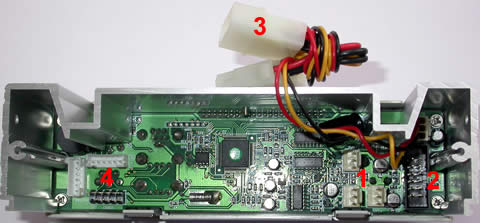
1. Fan slots. Here, we connected the fan cables with the CPU-Case-GPU fan cables inside the case. The slots are numbered as 1-2-3 respectively, indicating their monitored area when functioning the DigiPanel.
2.Sensor slot. Here we hook on the sensor cable which results in three different thermal sensitive tips for temperature monitoring.
3.Power Cable. This cable provides power to the Digipanel which is connected to a power supply cable and bridges with an expansion slot to circulate the power to another device, which in our case was a DVD-RW drive.
4.USB-1394-Earphones-Mic slots. From these connections, the cables run all the way to the back end of the case and into the appropriate connections.
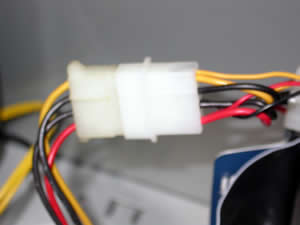
the power cable connecting the DigiPanel with the power supply...

From here on, the installation was easy. We placed the sensor cables at the appropriate positions (note here that the CPU sensor cable is not to be put under the heatsink as is suggested by the heatsink manufacturers).

With the accompanying thermal straps that come with the DigiPanel II, we placed the CPU sensor near the CPU heatsink fins, while we placed the second one near the GPU heatsink of the graphics card. The third was not used.
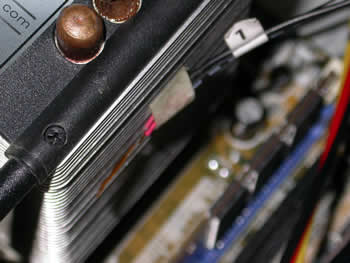
The temperature readings we got were not 100% accurate, while they differ by 8°C from the reported CPU temperature measurement taken with the SpeedFan utility. Let us say here that the sensors are quite sensitive and will react to any temperature differences occurring.
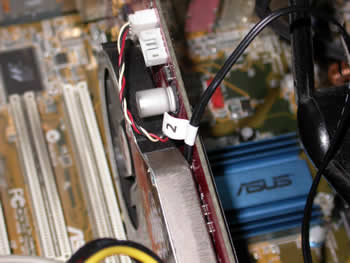
For the needs of this review, we used only two temperature sensors and one fan cable, that of the CPU fan.

Next, we put the rest of the cables (USB-1394-Mic-Earphones) through the case, to the motherboard connectors at the back of the case...

After installing all cables and booting the test PC, we went on to set the threshold for the alarm temperature and the low speed fan alarm.

The temperature upon booting was at 28.0°C while the CPU fan was at 3020rpm.

The installation procedure was finished without too much trouble, as the cables were easy to connect, and monitoring started as soon as the PC had been powered up.

Having completed the installation, lets move on to the next page were we test the USB and FireWire ports.


Review Pages

1. Introduction
2. Installation
3. Our Tests
4. Conclusion


Pages

  • « first
  • ‹ previous
  • 1
  • 2
  • 3
  • 4
  • next ›
  • last »

Spire

Tags: Spire
Previous Post
Thermaltake Silent Water
Next Post
NEC ND-4551A

Related Posts

  • Spire launches UD50C White PC chassis

  • Spire Unveils Cutting-Edge ARGB Cooling Fan Set: A 25-Year Legacy of Excellence in PC Cooling

  • Introducing Spire’s New Ergonomic Workstations and Desk Peripherals

  • SPIRE PC announces EagleForce series 80PLUS certified

  • Spire Thermal Stone Keeps Your Hands Warm

  • Spire Thermal Eclipse II review

  • Spire Previews Coolers For The Upcoming Intel 1156 Core i5 Platform

  • Spire PowerFuse

Latest Reviews

Why Intelligent Firmware Matters More Than Peak Throughput in NAS Systems
Enterprise & IT

Why Intelligent Firmware Matters More Than Peak Throughput in NAS Systems

Fanxiang MP83 M.2 NVMe SSD Enclosure
Enterprise & IT

Fanxiang MP83 M.2 NVMe SSD Enclosure

Ugreen CM642 USB4.0 Enclosure
PC components

Ugreen CM642 USB4.0 Enclosure

be quiet! Dark Power 14 IO
PC components

be quiet! Dark Power 14 IO

SanDisk High Endurance 512GB microSDXC
Cameras

SanDisk High Endurance 512GB microSDXC

Popular News

MSI’s Latest AMD X870E MAX & EVO Series Motherboards

MSI’s Latest AMD X870E MAX & EVO Series Motherboards

COLORFUL Launches iGame B850M ULTRA Series Micro-ATX Motherboards

COLORFUL Launches iGame B850M ULTRA Series Micro-ATX Motherboards

COLORFUL Presents Limited Edition Chitu MAG-60 Magnetic Keyboard Inspired by the Year of the Horse

COLORFUL Presents Limited Edition Chitu MAG-60 Magnetic Keyboard Inspired by the Year of the Horse

COLORFUL Launches iGame B850I MINI OC V14 Motherboard

COLORFUL Launches iGame B850I MINI OC V14 Motherboard

COLORFUL Launches the iGame X870E VULCAN W OC Motherboard

COLORFUL Launches the iGame X870E VULCAN W OC Motherboard

COLORFUL Presents iGame Z890 ULTRA-S W and iGame Z890M ULTRA Z Motherboards

COLORFUL Presents iGame Z890 ULTRA-S W and iGame Z890M ULTRA Z Motherboards

COLORFUL Expands B850 Motherboard Lineup with New CVN, Battle-Ax, and MEOW Models

COLORFUL Expands B850 Motherboard Lineup with New CVN, Battle-Ax, and MEOW Models

ASRock Adds Support for One Sub-Channel DRAM Module on Intel DDR5 Motherboards

ASRock Adds Support for One Sub-Channel DRAM Module on Intel DDR5 Motherboards

Main menu

  • Home
  • News
  • Reviews
  • Essays
  • About
    • Submit News

    • Contact Us
    • Privacy

    • Promotion
    • Advertise

    • RSS Feed
  • About
  • Privacy
  • Contact Us
  • Promotional Opportunities @ CdrInfo.com
  • Advertise on out site
  • Submit your News to our site
  • RSS Feed