ACRyan Veolo review
3. Main functions, settings
Review Pages
Let's power the player on. In order to use the remote control, you should have to "pair" it with the player first. The process is easy to understand and it is described in detail at the user's manual. In short, you have to hold the remote control within 3 cm of the left side of the VEOLO player, press & Hold both the 'SELECT' and 'RETURN' buttons simultaneously on the VEOLO 3-in-1 remote control for approx. 5 seconds while slowly moving the remote control around. When you see the mouse cursor move, the remote control and your VEOLO player are successfully paired. Of course, in case you find the remote control hard to use, you may connect a wireless keyboard and mouse to the player. AC Ryan has tested several Logitech products and they are working just fine. Of course, there is always the possibility your old keyboard/mouse not to be recognized by the Android OS.
The following video describes the main features of the Android GUI and also gives a quick overview of the player's functions:
It takes around 24 seconds for the main menu to show up on the screen and about 5 seconds for the device to shut down. Users who are familiar with Android devices are familiar with this behavior. The resolution on the desktop is 1280x720p and the output resolution in our Pioneer 50S20 Plasma TV connected with HDMI cable to the player is locked at 1080p@60hz.
We spotted the following note at ACRyan's online forum"...the fbset output will always give you 720p regardless what video resolution you choose. Since the OSD- and Video-Layer are separated the OSD Layer is fixed to 1280x720 whereas the video Layer will adapt to the current video output. The Hardware scales the OSD Layer to the current video output and merges the two layers together. Hope this explains why fbset shows you 720p at all times..."
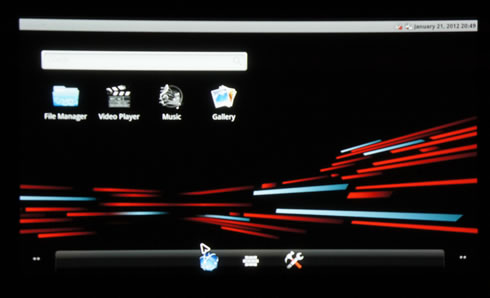
The main menu includes four icons: "File Manager", "Video Player", "Music" and "Gallery." You have 5 different screens (pages) available to place your installed apps, shortcuts or widgets. A notification bar on the top of the main screen will offer notifications or updates related to the installed apps. At the top right side of the screen there is a quick shortcut menu, from which you can un-mount your storage devices prior to removal from your player (mandatory!). There you will also find the time/date information, which is automatically set once you connect the player to the Internet.
The bottom "apps dock" bar is very useful as you can place your favorite apps there for quick access. The default apps found there ( Web Browser, My Apps and Settings) cannot be removed from this bar:
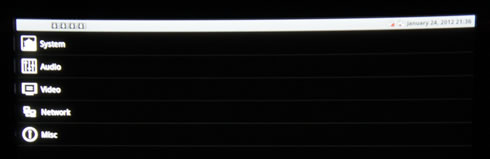
The "Settings" section includes five sub-menus: System, Audio, Video, Network and Misc:
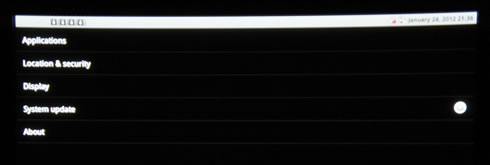
Under the ' Misc' menu you will find : Applications, Location & security, Display, System update and the About sub-menus:
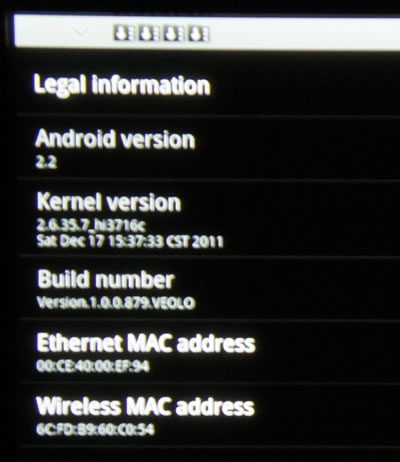
Below you see the player's "About" menu:
The 'System update' menu is provided to automatically update the firmware of the Veolo player, when updates are available:
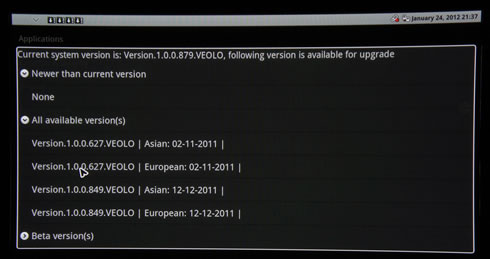
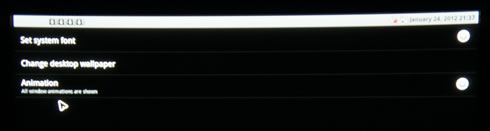
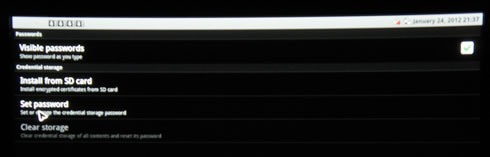
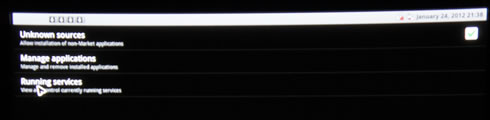
Going one level up and under the 'Network' menu, you can select either the 'Wired' or the 'Wireless network' connection options and their corresponding settings:
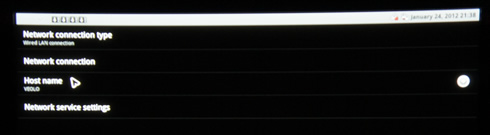
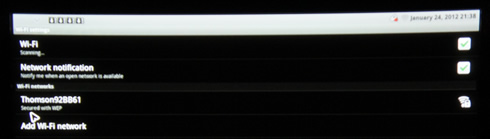
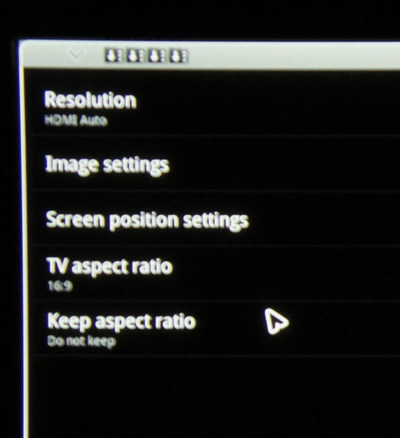
The 'Video' Menu includes options such as the resolution, image settings, TV aspect etc It is advised to select the "Do Not Keep" option under the aspect ratio menu, in order to enjoy full-sized zooming for all video apps:
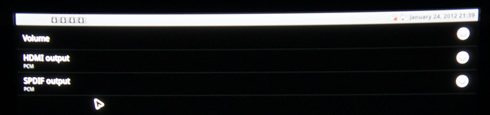
The 'Audio' menu includes settings for the volume, HDMI and SPDIF outputs:
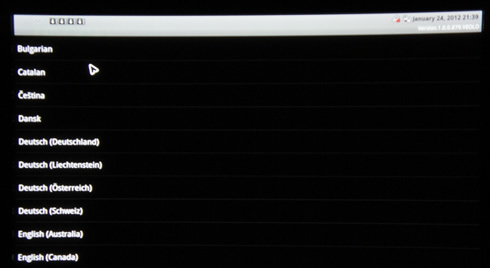
And finally under the 'System' menu you can set your favorite menu language, select your keyboard and manage the player's storage options:

Review Pages