Breaking News

SAMA Introduces the S32 WOOD, a Compact M-ATX Case Bundled with an 80 PLUS Gold PSU Thypoch Completes Simera-C Cine Prime Lineup with New 100mm T1.9 Lens CORSAIR Launches the RM1200e Power Supply with Built-in PinProtect GPU Overcurrent Protection and Platinum-certified Efficiency CORSAIR Changes the Game with PureVector, a Science-Based Personalized Aiming Technology, Launching Exclusively in the SABRE v3 PRO PureVector Mouse Series AMD FSR Upscaling 4.1 Boosts Frames and Image Quality on More Devices

logo

  • Share Us
    • Facebook
    • Twitter
  • Home
  • Home
  • News
  • Reviews
  • Essays
  • About
    • Submit News

    • Contact Us
    • Privacy

    • Promotion
    • Advertise

    • RSS Feed

Search form

Noctua NH-L9X65 - NH-D9L

Nov 27,2023 0

3. Installation


Review Pages

1. Introduction
2. Retail Package
3. Installation
4. Performance
5. Conclusion


Installing the CPU cooler requires several steps. The retail box includes all the needed information to install the CPU cooler either with Intel or AMD platform. Depending on the used system (AMD or Intel), you have to follow the printed/online instructions about the installation process.

For the AMD AM5 platform, you have to

a) Removing the stock retention module

b) put the plastic spacers onto the screw threads of the backplate. Then fix the NM-AMB12 mounting bars using the four NM-ALS1 long screws.

c) On AM5 and Ryzen 5000/3000 series AM4 CPUs, choose the -7mm offset hole position to ensure optimal contact quality and performance. On other AM4 CPUs, or if there are any compatibility issues in the offset position (e.g. clearance with motherboard heatsinks), please choose the standard position (0).
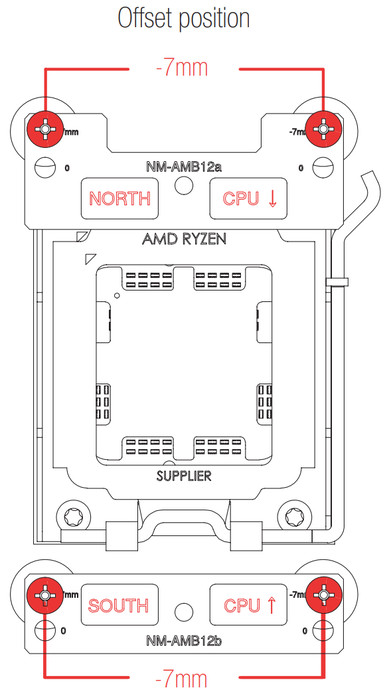
Make sure that the “CPU →” markings point towards the CPU and that the NM-AMB12a bar with the “NORTH” marking is installed on the north (top) side of the socket and the NM-AMB12b bar with the “SOUTH” marking is installed on the south (bottom) side of the socket, as shown above

d) Gently tighten the screws until they stop, but do not use excessive force (max. torque 0.6 Nm).

e) Applying the thermal paste. If there are residual traces of thermal paste or thermal pads on your CPU, please clean them off first. Then, apply 5 dots of the supplied NT-H1 thermal paste; 4 small dots with ~2mm diameter near the corners plus 1 dot with 3-4mm diameter in the center.
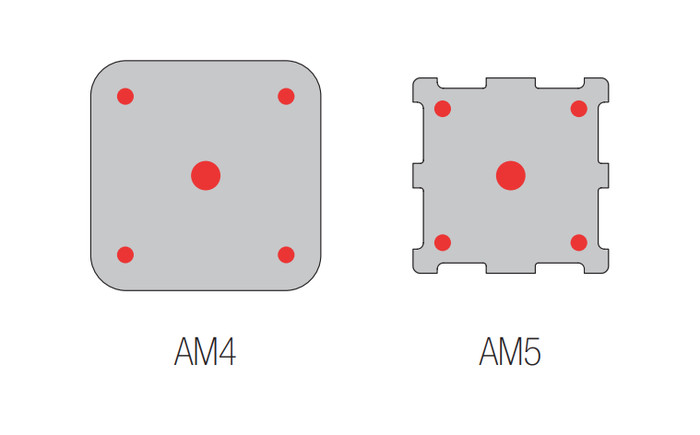
f) Fastening the heatsink to the CPU. first, take off the fan as well as the protection cover at the bottom side of the heatsink. Then put the heatsink onto the CPU and screw it to the screw threads of the mounting bars. Perform 2-3 turns on each screw, then repeat until both are fully tightened. Gently tighten the screws until they stop, but do not use excessive force (max. torque 0.6 Nm). Reattach the fan using the supplied steel clips.

Connect the fan(s) to the motherboard’s CPU fan header(s). If necessary, use the supplied NA-YC1 y-cable to connect both fans to one fan header. Even with the 92mm fan installed, there is some clearance at the front, while you can also install a second at the back area without any issues as well.
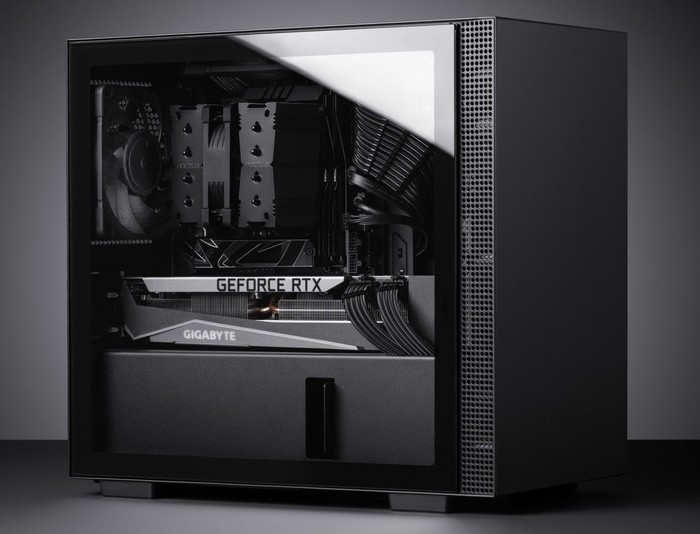

Installation of the Noctua NH-D9L
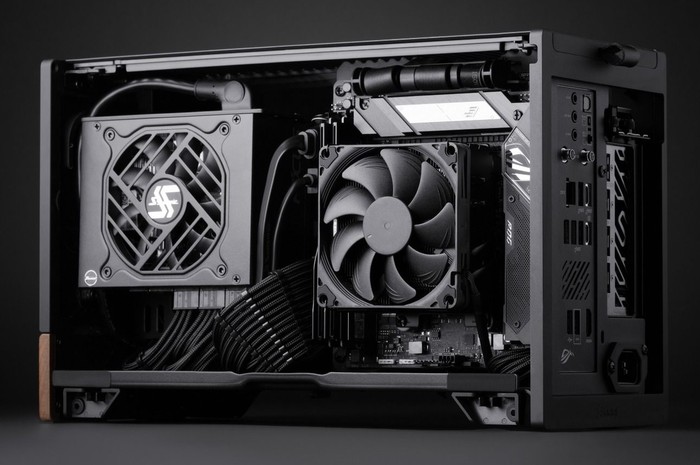

Installation of the Noctua NH-L9x65


Review Pages

1. Introduction
2. Retail Package
3. Installation
4. Performance
5. Conclusion


Pages

  • « first
  • ‹ previous
  • 1
  • 2
  • 3
  • 4
  • 5
  • next ›
  • last »

Noctua

Tags: Noctua
Previous Post
Crucial T500 2TB NVME
Next Post
Kioxia Exceria High Endurance MicroSD 512GB

Related Posts

  • Thermal Grizzly and Noctua introduce WireView Pro II Noctua Edition GPU monitoring device

  • Forced Physics DCT and Noctua announce research partnership on micro-channel array cooling

  • Noctua and Prusa Research release PETG filaments in signature Noctua colours

  • Noctua NL-LC1-36

  • Noctua introduces NL-LC1 all-in-one liquid coolers

  • Noctua at Computex 2026

  • Carbice and Noctua announce strategic partnership for DIY PC cooling applications

  • Noctua presents NF-A12x25 G2 chromax.black 120mm fans

Latest Reviews

be quiet! Light Wings Pro IO fan
Cooling Systems

be quiet! Light Wings Pro IO fan

Why Intelligent Firmware Matters More Than Peak Throughput in NAS Systems
Enterprise & IT

Why Intelligent Firmware Matters More Than Peak Throughput in NAS Systems

Fanxiang MP83 M.2 NVMe SSD Enclosure
Enterprise & IT

Fanxiang MP83 M.2 NVMe SSD Enclosure

Ugreen CM642 USB4.0 Enclosure
PC components

Ugreen CM642 USB4.0 Enclosure

be quiet! Dark Power 14 IO
PC components

be quiet! Dark Power 14 IO

Popular News

MSI’s Latest AMD X870E MAX & EVO Series Motherboards

MSI’s Latest AMD X870E MAX & EVO Series Motherboards

COLORFUL Launches iGame B850M ULTRA Series Micro-ATX Motherboards

COLORFUL Launches iGame B850M ULTRA Series Micro-ATX Motherboards

COLORFUL Presents Limited Edition Chitu MAG-60 Magnetic Keyboard Inspired by the Year of the Horse

COLORFUL Presents Limited Edition Chitu MAG-60 Magnetic Keyboard Inspired by the Year of the Horse

COLORFUL Launches iGame B850I MINI OC V14 Motherboard

COLORFUL Launches iGame B850I MINI OC V14 Motherboard

COLORFUL Launches the iGame X870E VULCAN W OC Motherboard

COLORFUL Launches the iGame X870E VULCAN W OC Motherboard

COLORFUL Presents iGame Z890 ULTRA-S W and iGame Z890M ULTRA Z Motherboards

COLORFUL Presents iGame Z890 ULTRA-S W and iGame Z890M ULTRA Z Motherboards

COLORFUL Expands B850 Motherboard Lineup with New CVN, Battle-Ax, and MEOW Models

COLORFUL Expands B850 Motherboard Lineup with New CVN, Battle-Ax, and MEOW Models

ASRock Adds Support for One Sub-Channel DRAM Module on Intel DDR5 Motherboards

ASRock Adds Support for One Sub-Channel DRAM Module on Intel DDR5 Motherboards

Main menu

  • Home
  • News
  • Reviews
  • Essays
  • About
    • Submit News

    • Contact Us
    • Privacy

    • Promotion
    • Advertise

    • RSS Feed
  • About
  • Privacy
  • Contact Us
  • Promotional Opportunities @ CdrInfo.com
  • Advertise on out site
  • Submit your News to our site
  • RSS Feed