Breaking News

ASUS Announces WiFi 8 Router DJI Launches Osmo 360 II Razer introduces Clio X Wireless Speaker Head Cushion That Delivers THX Spatial Audio LiberNovo Showcases Ergonomic Innovation at IFA 2026 with Maxis Series for Big And Tall Users TIMEKETTLE UNVEILS NEW W4 PLUS AI INTERPRETER EARBUDS EXPANDING REAL-TIME TRANSLATION ACROSS CALLS, MEETINGS AND MULTIMEDIA CONTENT

logo

  • Share Us
    • Facebook
    • Twitter
  • Home
  • Home
  • News
  • Reviews
  • Essays
  • About
    • Submit News

    • Contact Us
    • Privacy

    • Promotion
    • Advertise

    • RSS Feed

Search form

Aopen MVP player

Sep 6,2004 0

4. MVP Configuration


Review Pages

1. Introduction - Retail Package
2. Inside the MVP Player
3. HDD Enclosure Installation
4. MVP Configuration
5. Video/Audio files analysis
6. File Mode
7. Photo Mode
8. Video Mode
9. Music Mode
10. Conclusions


AOpen MVP Player - Page 4

MVP Configuration

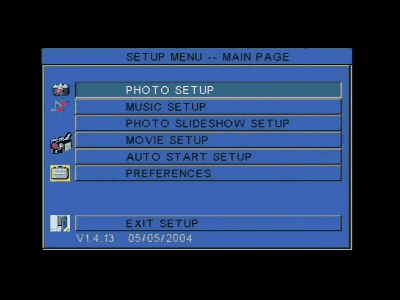
For best viewing, you should configure the device to match your needs. The MVP player offers an easy to use setup menu. You can configure almost anything. The setup screen is shown below.
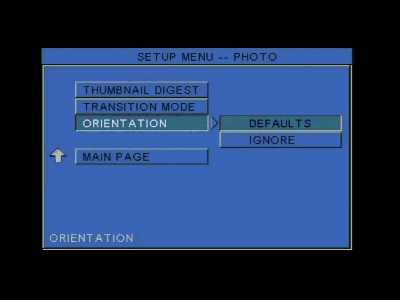
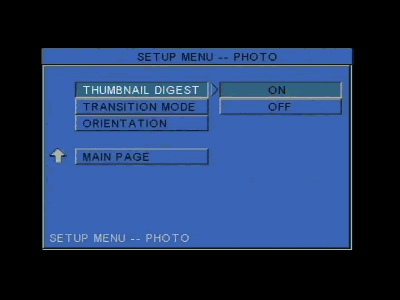
For best photo viewing, you can set to on or off the thumbnail digest function, the transition mode (from slow to fast), and the orientation feature for photos. The following images indicate the configurations we used for this test.
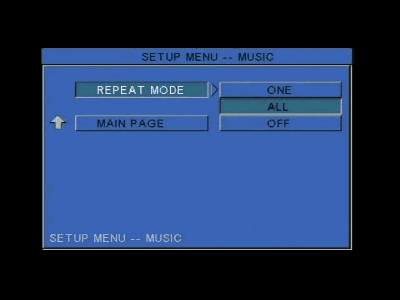
Not much to setup for music. You can only change the track repeat mode. However, during music playback, there are a few more options available that will be discussed later on in this review.
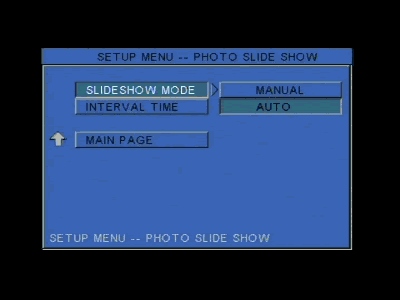
The MVP player supports the Photo Slideshow function. Setting the slideshow mode to auto will enable the device to automatically start slideshow viewing when images are stored in the used media (hard disk or multimedia card). The slideshow interval time can also be changed from one to ten seconds.
Like the music setup, there is not much to change for the movie setup. Unfortunately, there is no aspect ration option for 16:9 and 4:3 viewing. Only movie interval time and repeat mode can be changed. Again, the images below indicate the configurations we used for our tests.

The auto start menu sets the default mode the device will automatically use when it is turned on or when a new storage media is inserted. We turned off the auto start function in order to choose the appropriate mode ourselves everytime the MVP is turned on.

From the preferences page, you can choose the video output the device will use. VGA mode is used for PC monitor viewing while S-Video/Component is used for TV screen viewing. We tried all available video outputs and there was no difference in functionality between S-Video/Composite and VGA mode.
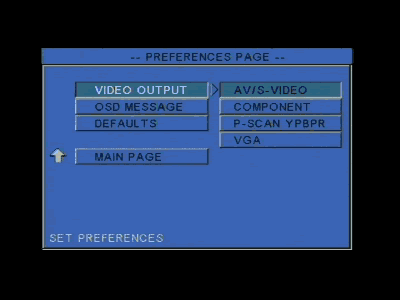
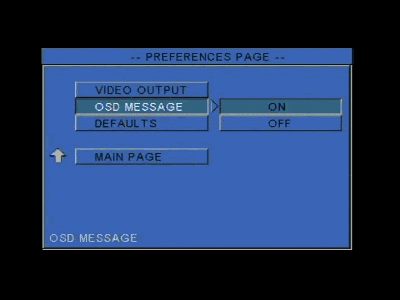
There's also an option to set all configurations to default values.


Review Pages

1. Introduction - Retail Package
2. Inside the MVP Player
3. HDD Enclosure Installation
4. MVP Configuration
5. Video/Audio files analysis
6. File Mode
7. Photo Mode
8. Video Mode
9. Music Mode
10. Conclusions


Pages

  • « first
  • ‹ previous
  • 1
  • 2
  • 3
  • 4
  • 5
  • 6
  • 7
  • 8
  • 9
  • next ›
  • last »

Aopen

Tags: Aopen
Previous Post
BenQ DW1620A
Next Post
Optorite DD1205

Related Posts

  • AOPEN Introduces AMD-based Multi-Screen 4K Video Wall Solutions

  • SAMSUNG and AOpen To Jointly Promote Their Digital Signage Systems

  • AOpen Launched The XC mini MP45-BDR with Blu-ray Capabilities

  • AOpen's First Blu-ray Disc Drive BDR0412SA Released

  • AOpen Unveils 20X SATA DVD Burner

  • AOpen's DSW2012P 20X DVD burner

  • AOpen DSW1812P 18x DVD Burner Launched in the U.S.

  • Aopen Cube goes dual core

Latest Reviews

be quiet! Dark Power 14 IO
PC components

be quiet! Dark Power 14 IO

SanDisk High Endurance 512GB microSDXC
Cameras

SanDisk High Endurance 512GB microSDXC

Samsung PRO Ultimate 512GB microSDXC
Cameras

Samsung PRO Ultimate 512GB microSDXC

be quiet! Light Mount TKL
Consumer Electronics

be quiet! Light Mount TKL

be quiet! Light Loop IO LCD
Cooling Systems

be quiet! Light Loop IO LCD

Popular News

CORSAIR announces Vanguard Pro 96 and Vanguard 96 Gaming Keyboards

CORSAIR announces Vanguard Pro 96 and Vanguard 96 Gaming Keyboards

MSI Launches FORGE GK600 TKL WIRELESS Special Edition Compact Mechanical Keyboard

MSI Launches FORGE GK600 TKL WIRELESS Special Edition Compact Mechanical Keyboard

Viltrox Showcases Upcoming Lens Lineup and New TTL Flash at IBC 2025

Viltrox Showcases Upcoming Lens Lineup and New TTL Flash at IBC 2025

Panasonic Introduces the First Ultra-Telephoto Zoom Lens in the LUMIX S Series

Panasonic Introduces the First Ultra-Telephoto Zoom Lens in the LUMIX S Series

MSI Launches DATAMAG 40Gbps Magnetic Portable SSD

MSI Launches DATAMAG 40Gbps Magnetic Portable SSD

MSI’s Latest AMD X870E MAX & EVO Series Motherboards

MSI’s Latest AMD X870E MAX & EVO Series Motherboards

COLORFUL Launches iGame B850M ULTRA Series Micro-ATX Motherboards

COLORFUL Launches iGame B850M ULTRA Series Micro-ATX Motherboards

COLORFUL Presents Limited Edition Chitu MAG-60 Magnetic Keyboard Inspired by the Year of the Horse

COLORFUL Presents Limited Edition Chitu MAG-60 Magnetic Keyboard Inspired by the Year of the Horse

Main menu

  • Home
  • News
  • Reviews
  • Essays
  • About
    • Submit News

    • Contact Us
    • Privacy

    • Promotion
    • Advertise

    • RSS Feed
  • About
  • Privacy
  • Contact Us
  • Promotional Opportunities @ CdrInfo.com
  • Advertise on out site
  • Submit your News to our site
  • RSS Feed