Seiko CDP4000 CD Printer
1. Installation - Printing features
Review Pages
2. Connections - Installing Ink Catridges
3. Conclusion
4. Printing Performance
5. Installation - Printing Software
6. Introduction
Seiko Precision CDP-4000 CD-R Printer - Page 1
Introduction
 Europe was under the name of SEIKOSHA, a well-known printer manufacturer, until
1997 when was renamed to SEIKO Precision, Hamburg. The mother company (SEIKO)
is established in Japan in 1881 and since then is dedicated to the development
and production of high tech products. SEIKO Precision manufactures camera components,
IT products, develops network technologies. However, the company is known as
a printer manufacturer. SEIKO Precision CD 4000 inkjet CD printer is SEIKO’s
proposal for high quality CD labeling. The device supports high resolution 1440
x 720 printing and comes to complete the CD inkjet printer line already represented
by SEIKO CD Printer 2000, its “brother” printer by SEIKO. SEIKO Precision
CD 4000 entered the market in Cebit, on February 2001. We are looking forward
to seeing what the printer can offer…
Europe was under the name of SEIKOSHA, a well-known printer manufacturer, until
1997 when was renamed to SEIKO Precision, Hamburg. The mother company (SEIKO)
is established in Japan in 1881 and since then is dedicated to the development
and production of high tech products. SEIKO Precision manufactures camera components,
IT products, develops network technologies. However, the company is known as
a printer manufacturer. SEIKO Precision CD 4000 inkjet CD printer is SEIKO’s
proposal for high quality CD labeling. The device supports high resolution 1440
x 720 printing and comes to complete the CD inkjet printer line already represented
by SEIKO CD Printer 2000, its “brother” printer by SEIKO. SEIKO Precision
CD 4000 entered the market in Cebit, on February 2001. We are looking forward
to seeing what the printer can offer…
- Main specifications
· Parallel and USB Interface
· 256 KB memory
Printable Media: · Paper to cardboard up to 2.5 mm in thickness, Printable CDRs, Plastic cards
Single sheet feeder: Paper: A4, letter, transparencies (A4), labels (A4), B5, legal, executive and user defined formats. Inlay –and bottom cards for CD cases. Roll paper
Resolution: 1440 x 720 dpi micro piezo technology
- Unpacking
 The
printer was provided by AVD
Computer Services Ltd. Except from the printer the supplied package contained
the essential printer operation equipment and some other consumables available
for the CD Printer 4000. These are the paper support, the power cord, the black
and color ink cartridges, the roll paper holder, the caddy, the driver-CD with
user’s Guide, printer driver and software, the CD-R attachment, the protective
cover and the “Getting Started ” manual.
The
printer was provided by AVD
Computer Services Ltd. Except from the printer the supplied package contained
the essential printer operation equipment and some other consumables available
for the CD Printer 4000. These are the paper support, the power cord, the black
and color ink cartridges, the roll paper holder, the caddy, the driver-CD with
user’s Guide, printer driver and software, the CD-R attachment, the protective
cover and the “Getting Started ” manual.
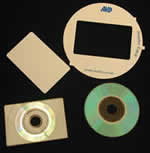 As
for the media supplied, there are printable plastic cards, business cards, 80mm
CDs (Ritek Co 180MB), and printable CDs (Vivastar AG 700MB). For the business
and plastic cards printing there is a special adapter providing the proper media
placement on the printer tray.
As
for the media supplied, there are printable plastic cards, business cards, 80mm
CDs (Ritek Co 180MB), and printable CDs (Vivastar AG 700MB). For the business
and plastic cards printing there is a special adapter providing the proper media
placement on the printer tray.
The main printing unit as shown in the picture on the right has many different parts. Let’s see some of them:
 1.
Paper support: supports the paper loaded in the sheet feeder.
1.
Paper support: supports the paper loaded in the sheet feeder.
2. Sheet feeder: Holds the blank paper and automatically feeds the paper during
printing.
3. Printer cover: Covers the printing mechanism. Open only when handling the
following items. Ink cartridges, CD-R attachment, Caddy
4. Output tray: Receives the eject paper.
5. Output tray extension: Supports the ejected paper.
6. Edge guide: Help load the paper straight.
 7.
Roll paper holder: Holds the roll paper to the printer.
7.
Roll paper holder: Holds the roll paper to the printer.
8. Adjust lever: This selects the gap between the print head and the paper.
“ 0 ” position : for plain paper,
EPSON paper (excluding Matte Paper), paper 0.08 to 0.3 mm thick.
“ + ” position: envelopes, Matte paper, paper 0.4 to 1.6 mm thick
“ ”
position: released position
”
position: released position
9. Manual feed slot edge guide: This ensures that paper or caddy
loaded in the manual feed slot is inserted straight.
10. Manual feed slot: This slot is used when printing on Matte Paper or paper
0.4 to 2.5 mm thick. The CD-R caddy is also inserted here.
11. USB interface cable connector: Connects USB cable from the PC to the printer.
12. Parallel interface connector: Connects parallel cable from the computer
to the printer.
13. AC inlet: Insert the power cable here.
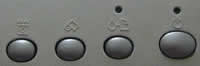 The
picture on the left shows the front buttons and led of the printer. Starting
from the right there is the power button, which obviously turns the printer
on and off. Also it clears the printer’s memory if pressed twice while
the power is on. Next you see the maintenance button, which loads or ejects
paper if pressed and released within two seconds. It resumes printing if pressed
and released after a paper out error. It is also performs print head cleaning
if pressed for 3 seconds when the maintenance led is off. The roll paper button
loads and ejects roll paper. It feeds roll paper in reverse to a position where
it can be easily removed from the sheet feeder, if pressed for more than 3 seconds.
The
picture on the left shows the front buttons and led of the printer. Starting
from the right there is the power button, which obviously turns the printer
on and off. Also it clears the printer’s memory if pressed twice while
the power is on. Next you see the maintenance button, which loads or ejects
paper if pressed and released within two seconds. It resumes printing if pressed
and released after a paper out error. It is also performs print head cleaning
if pressed for 3 seconds when the maintenance led is off. The roll paper button
loads and ejects roll paper. It feeds roll paper in reverse to a position where
it can be easily removed from the sheet feeder, if pressed for more than 3 seconds.
The Power led is on when the printer is on. It flashes when the printer receives data, printing, while replacing an ink cartridge or cleaning the printing head.
The maintenance led is on when the printer is out of paper and
when the paper is jammed. In the first case, load paper in the sheet feeder
and press the maintenance button to resume printing. When the paper is jammed,
you have to take all the paper out of the feeder and then reload the paper.
If the light continues to flash, you have to turn off the printer and gently
pull all the paper out of the printer. The led also flashes when the print head
moves to the ink cartridge replacement position or the inks are out.
- Test Machine
WinMe/Win2k
Soyo 7VCA
Celeron II 566 over clocked to 850 MHz
128MB SDRAM PC 133
WD 18GB UDMA 66
Quantum Fireball EX 6.4GB
SCSI: DAWI 2975 - PCI (ULTRA)
ATI AIW 128
Review Pages
2. Connections - Installing Ink Catridges
3. Conclusion
4. Printing Performance
5. Installation - Printing Software
6. Introduction