Linux Hardware Monitoring
3. Sensor/GPU Monitoring
You probably know that your motherboard has various sensors which, among other things, measure voltage, fan rpm and various temperatures. These are usually accessible via an on-board chip, which is typically supported by modern Linux kernels. You will need to enable the appropriate driver in the kernel configuration menu. If, like most people, you don't know the exact chip on your motherboard, you can either choose to enable all of them (preferably as modules) or use the “sensors-detect” utility, which is part of the “sensors” package. The relevant kernel configuration section can be found under Drivers → Hardware Monitoring support, as shown below (kernel 2.6.20):
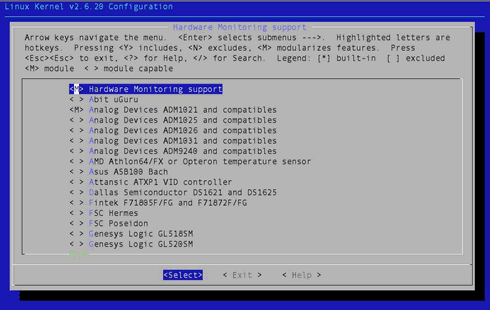
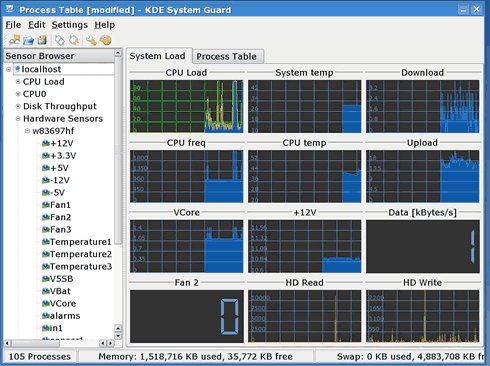
Luckily, many chips are supported. In my case it is a Winbond W83697 that the kernel promptly recognizes. You can then use various software packages to read the values, but bear in mind that their accuracy may vary. A simple solution is ksysguard, but the sensors package also provides a command line utility, similar in spirit to smartmontools. Here is a screencapture of ksysguard:
Nvidia GPU monitoring
 You can also monitor your nVidia graphics card with a simple but powerful program called “nvclock”. This utility prints lots of information about your graphics card and can also help in setting various options (anisotropic filtering, FSAA). You can also use it to overclock your GPU or graphics memory (generally not advised) or change fan speed.
Here is the information that nvclock prints:
- root@hagakure:~# nvclock -i
- -- General info --
- Card: nVidia Geforce 6600GT
- Architecture: NV43 A4
- PCI id: 0xf1
- GPU clock: 299.250 MHz
- Bustype: AGP (BR02)
- -- Pipeline info --
- Pixel units: 8 (11b)
- Vertex units: 3 (111b)
- HW masked units: None
- SW masked units: None
- -- Memory info --
- Amount: 128 MB
- Type: 128 bit DDR
- Clock: 899.999 MHz
- -- Sensor info --
- Sensor: National Semiconductor LM99
- Board temperature: 40C
- GPU temperature: 52C
- Fanspeed: 50.0%
- -- VideoBios information --
- Version: 05.43.02.39.00
- Signon message: ASUS N6600GT VGA BIOS Version 5.43.02.39.AS39
- Performance level 0: gpu 300MHz/memory 900MHz/1.30V
- Performance level 1: gpu 500MHz/memory 900MHz/1.40V
- VID mask: 3
- Voltage level 0: 1.30V, VID: 0
- Voltage level 1: 1.40V, VID: 3
I usually reduce fanspeed with the -f and -F options. It's a nice trick if your graphics card produces an awful lot of noise (unfortunately, many of them do):
- root@hagakure:~# nvclock -f -F 50
- Current fanspeed: 100.0%
- Changing fanspeed from 100.0% to 50.0%
- New fanspeed: 50.0%
Note that nvclock also has nice GTK and Qt GUI interfaces for those that hate the command line.
Conclusion
There are many tools that allow you to monitor your hardware under Linux. The examples given above are just a few, but they do give an overview of the possibilities. By carefully inspecting the status of your hardware, you can predict failures or pinpoint their causes. Above all, it's a neat trick. Have fun!