Primera Inscripta Thermal CD Printer
4. Intergration with Composer system
Review Pages
Primera Inscripta Thermal Printer - Page 4
Intergration with Composer system
Inscripta optical printer can also be used as printing device
attached to Primera's Disc Duplication system. User has the chance to write
and print his favorite CDs in a few steps, using the recording software (Prassi
PrimcoCD Pro) provided with the Composer CD Duplicator by Primera. The next
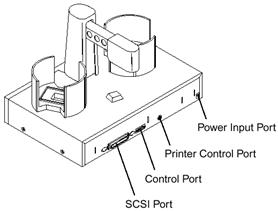
picture shows the duplicator and indicates the input ports on its rear panel.
 The
SCSI Port is for connection to your PC's internal SCSI card. It receives data
that is to be recorded on a CD. The Control Port is connected to COM1 (or COM2
or COM3) of your PC with a serial cable. The Printer Control Port is connected
to the mini-DIN plug on the rear panel of the Thermal CD printer. Lastly, the
Power Input Port is for +24V power connection.
The
SCSI Port is for connection to your PC's internal SCSI card. It receives data
that is to be recorded on a CD. The Control Port is connected to COM1 (or COM2
or COM3) of your PC with a serial cable. The Printer Control Port is connected
to the mini-DIN plug on the rear panel of the Thermal CD printer. Lastly, the
Power Input Port is for +24V power connection.
The next step is to attach the optional printer stand (required for the printer installation) to the Duplicator by locating the connecting tabs and inserting them into the slots on the rear panel of the Duplicator. The thermal CD printer is mounted on the left side, as shown below. Make sure that the Printer Control Cable is routed neatly out the back of the printer Stand so that it can be connected to the rear panel of the printer
Note that you should place the Output CD Bin in the spot shown
in the pic so that the printer's tray will be free to open.

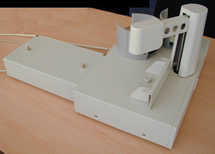
What's left is to place the Tray Support bracket on the upper side of the duplicator. The bracket provides extra support to the printer's CD Tray when the robotic arm picks a disc.
 Position
the Tray Support bracket over the locating guide and tighten the supplied screw
into the hole near the locating guide. Then place the Thermal CD printer on
the stand and calibrate the printer position by sliding the printer forward
on the Mounting Plate so that the printer's tray can be fully seated without
binding or being stopped short of being fully extended (open). That's it, the
printer is ready to use after installing the recording software.
Position
the Tray Support bracket over the locating guide and tighten the supplied screw
into the hole near the locating guide. Then place the Thermal CD printer on
the stand and calibrate the printer position by sliding the printer forward
on the Mounting Plate so that the printer's tray can be fully seated without
binding or being stopped short of being fully extended (open). That's it, the
printer is ready to use after installing the recording software.
Review Pages