Breaking News

NVIDIA and Microsoft Reinvent Windows PCs for the Age of Personal AI WD at Computex 2026 Lexar at COMPUTEX 2026 ASRock Announces AMD Radeon RX 9070 GRE Steel Legend Dark 12GB OC Graphics Card ARCTIC Showcases New Products at COMPUTEX 2026

logo

  • Share Us
    • Facebook
    • Twitter
  • Home
  • Home
  • News
  • Reviews
  • Essays
  • Forum
  • Legacy
  • About
    • Submit News

    • Contact Us
    • Privacy

    • Promotion
    • Advertise

    • RSS Feed
    • Site Map

Search form

Asus Arctic Square

May 24,2007 0

3. Installation


Review Pages

1. Introduction
2. The Package
3. Installation
4. Performance
5. Conclusion


Time to move on to the installation. The first step is to get cross-like plastic mount and remove the white protective tape. The tape covers a sticky material that helps keep the mount in place while you assemble the rest of the cooler. As we found in our tests, if you remove the mount, most of the glue stays on the motherboard, so there's not much left for second use.
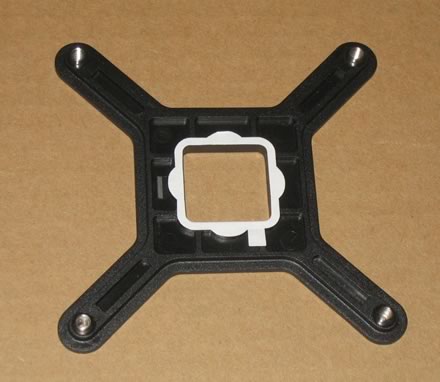
The plastic mount goes on the back of your motherboard. Just push it in place, it stays there thanks to the glue.
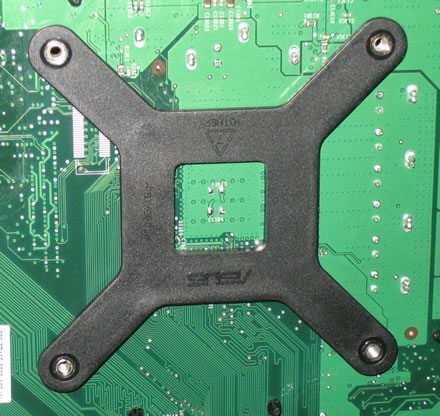
On the top side of the motherboard, we can see the four holes where the cooler will be screwed in...
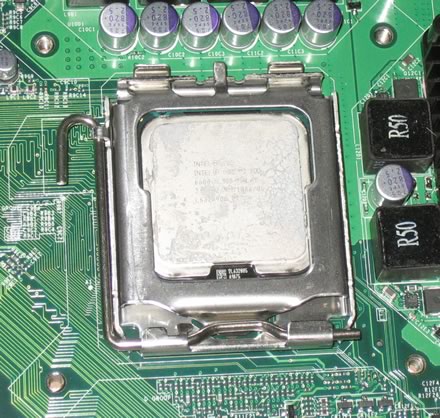
The next step is to mount at the metalic base, the four screws and the plastic caps so that you can screw and secure the base to the motherboard.
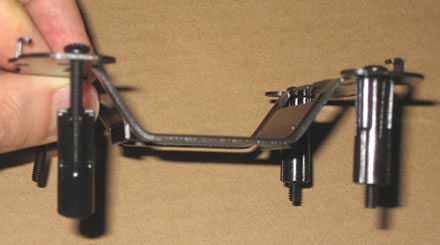
There are four "black" and four "silver" screws. At first, it wasn't very clear which screws should be used. I started off with the black, but after several attempts I realised that the silver were the right ones.
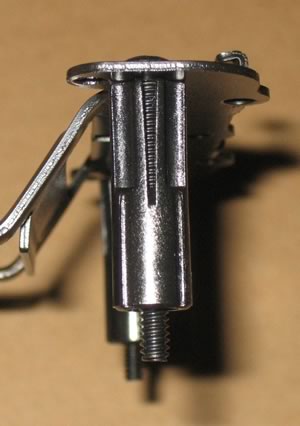
The next problem was which holes should be used for the screws. There are no numbers or markings on the holes, so after consulting the installation guide for some time, wading through the diagrams and checking against the mounting plate, I finally figured out which ones.
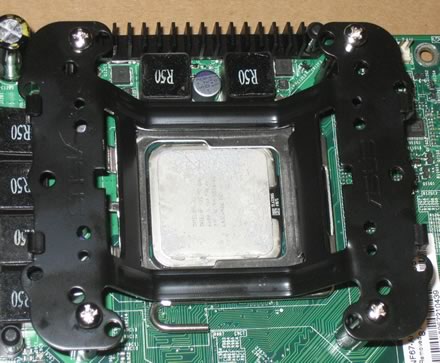
The screws tightened and the base is securely mounted.
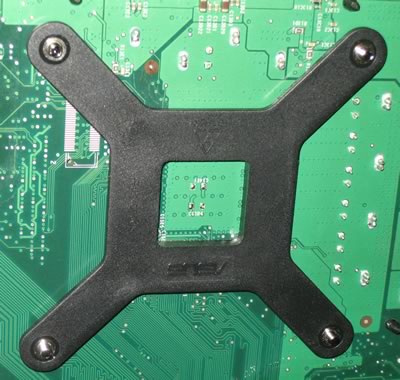
Apply thermal paste to the copper base of the cooler and gently sit the big cooler gently on the CPU and mounting base. Nothing difficult here...
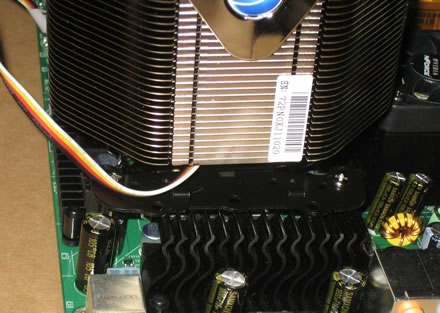
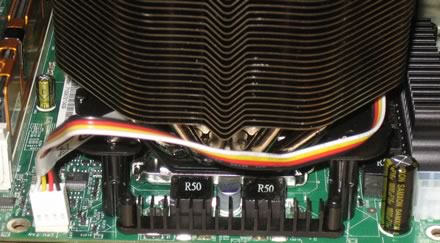
Then we have to clamp the cooler in place with the metalic plate, which helps hold and secure the cooler. Not the best or easiest task...
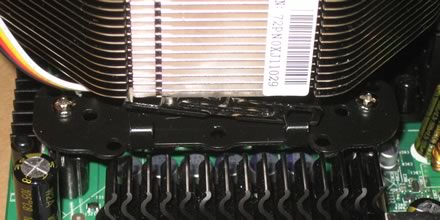
but after several attempts, we finally got it right.
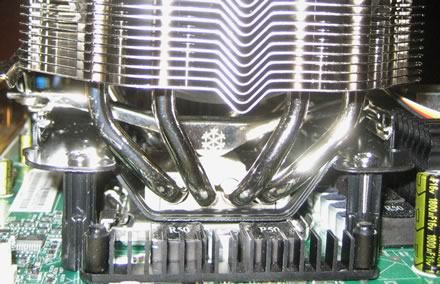
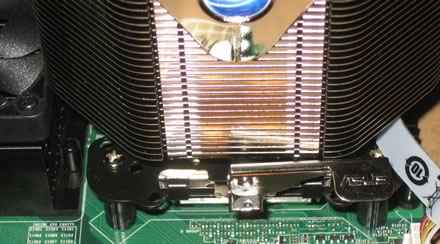
And the last step, push down the lever to clamp the cooler securely!
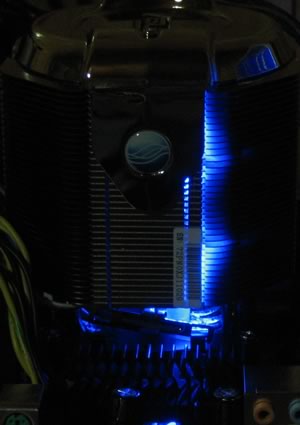
When the cooler is operational, a blue electric light is produced.
 

Review Pages

1. Introduction
2. The Package
3. Installation
4. Performance
5. Conclusion


Pages

  • « first
  • ‹ previous
  • 1
  • 2
  • 3
  • 4
  • 5
  • next ›
  • last »

ASUS

coolers

LGA775

AM2

Tags: ASUS coolers LGA775 AM2
Previous Post
Has Sprint "Upstaged" the iPhone?
Next Post
EVGA 8800GTS KO ACS3

Related Posts

  • ASUS Announces T1 GeForce RTX 5070 and RTX 5060 Ti Graphics Cards

  • ASUS Announces ProArt GeForce RTX 5090 Graphics Card

  • ASUS Announces ProArt Display OLED PA27USD and PA32USD

  • ASUS Announces TUF Gaming Platinum Power Supply Series

  • ASUS Announces ProArt PA40SU USB4 SSD Enclosure

  • ASUS Showcases Comprehensive AI-Powered Creator Workflows at NAB Show 2026

  • ASUS Announces ProArt Router PRT-BE5000 and ProArt Switch PQG-U1080

  • ASUS Announces Intel Core Ultra 200S Plus Series Support on W880, Z890, Q870, B860 and H810 Motherboards

Latest Reviews

Swit NP-FZ100 Battery
Cameras

Swit NP-FZ100 Battery

The Technology Stack Behind Modern Digital Gaming Platforms
Consumer Electronics

The Technology Stack Behind Modern Digital Gaming Platforms

be quiet! Dark Rock Pro 6
Cooling Systems

be quiet! Dark Rock Pro 6

How Online Casinos Use Encryption, Verification, and Risk Controls to Build User Trust
Enterprise & IT

How Online Casinos Use Encryption, Verification, and Risk Controls to Build User Trust

Why Low-Latency Infrastructure Matters More Than Raw Specs
Enterprise & IT

Why Low-Latency Infrastructure Matters More Than Raw Specs

Popular News

TEAMGROUP Launches EXPERT P34F Find My External SSD

TEAMGROUP Launches EXPERT P34F Find My External SSD

CORSAIR announces Vanguard Pro 96 and Vanguard 96 Gaming Keyboards

CORSAIR announces Vanguard Pro 96 and Vanguard 96 Gaming Keyboards

MSI Launches FORGE GK600 TKL WIRELESS Special Edition Compact Mechanical Keyboard

MSI Launches FORGE GK600 TKL WIRELESS Special Edition Compact Mechanical Keyboard

Samsung announces Galaxy Tab S11 and Galaxy S25 FE series

Samsung announces Galaxy Tab S11 and Galaxy S25 FE series

Viltrox Showcases Upcoming Lens Lineup and New TTL Flash at IBC 2025

Viltrox Showcases Upcoming Lens Lineup and New TTL Flash at IBC 2025

Panasonic Introduces the First Ultra-Telephoto Zoom Lens in the LUMIX S Series

Panasonic Introduces the First Ultra-Telephoto Zoom Lens in the LUMIX S Series

MSI Launches DATAMAG 40Gbps Magnetic Portable SSD

MSI Launches DATAMAG 40Gbps Magnetic Portable SSD

Viltrox Joins the L-Mount Alliance, Expanding Creative Possibilities

Viltrox Joins the L-Mount Alliance, Expanding Creative Possibilities

Main menu

  • Home
  • News
  • Reviews
  • Essays
  • Forum
  • Legacy
  • About
    • Submit News

    • Contact Us
    • Privacy

    • Promotion
    • Advertise

    • RSS Feed
    • Site Map
  • About
  • Privacy
  • Contact Us
  • Promotional Opportunities @ CdrInfo.com
  • Advertise on out site
  • Submit your News to our site
  • RSS Feed