
Breaking News

ENDORFY introduces Atlas Electric desks Sony Unveils LinkBuds Clip Open Earbuds be quiet! enters high-end gaming mouse market with Dark Perk Ergo and Dark Perk Sym ASUS ROG announces ROG Strix GS-BE7200 Dual-Band WiFi 7 Gaming Router Transcend Launches RDE3 microSD Express Card Reader for Next-Generation High-Speed Performance

logo

  • Share Us
    • Facebook
    • Twitter
  • Home
  • Home
  • News
  • Reviews
  • Essays
  • Forum
  • Legacy
  • About
    • Submit News

    • Contact Us
    • Privacy

    • Promotion
    • Advertise

    • RSS Feed
    • Site Map

Search form

Patriot Memory Valkyrie NAS review

Jul 1,2010 0

3. Basic setup


Review Pages

1. Features
2. Package, HDD installation
3. Basic setup
4. Features
5. Working with RAID fuctions, performance
6. Other features, conclusion


After installing the HDDs we can now power up the device. Of course you need to connect the NAS to a local network and run the software CD with the Network Setup Utility. After few seconds, the connected NAS server is found and identified. The first screen in the network setup utility provides basic information about the device such as firmware version, IP address and information about the installed HDDs.
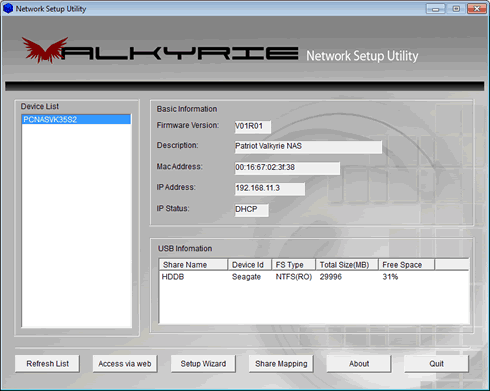
The software offers a Setup wizard, allowing you to easily set many important features. First you will be prompted to enter the name and password. The default user name is "Admin" and the password is "root":

You can continue configuring the device by adding your own description for the device, setting the time and date:

The device is pre-configured with Dynamic Host Configuration Protocol (DHCP) protocol with the 192.168.11.3 to be the default IP address. When you connect your VALKYRIE to a DHCP device, the device assigns your VALKYRIE with a unique IP address. You can confirm the network connection and view IP address via the VALKYRIE NetTool.
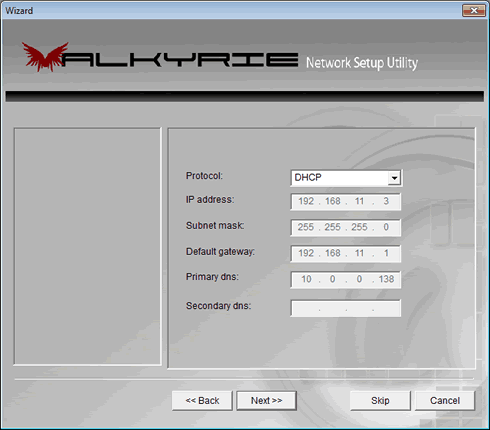
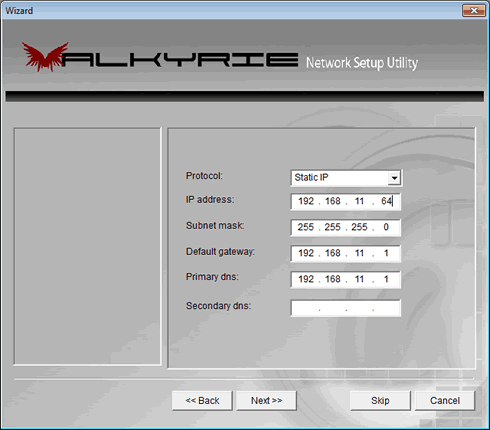
For our tests, we will use a static IP. We choose the "Static IP" option in the 'protocol' menu and enter a static IP address within the range of our router. We added the default gateway (modem/router IP) and our network's DNS settings. The procedure is easy and straightforward and follows the typical configuration steps for a LAN device:
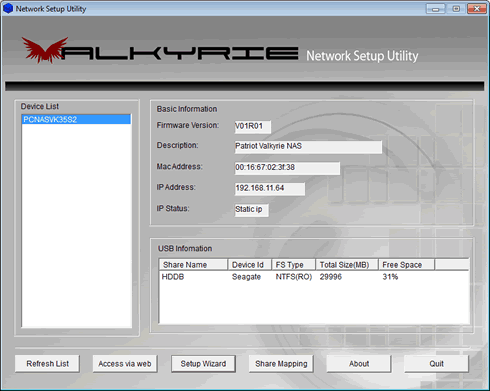
After finishing the procedure our device has been configured with a static IP. We are now ready to access it via the web by pressing the corresponding "Access via Web" button found at at the bottom of the network setup utility:
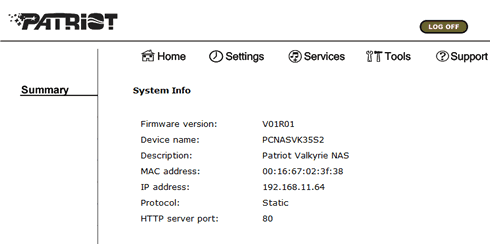
Our default web browser will automatically open and displays the web setup menu of the device. From here you can have web access to the settings of the NAS drive:
The NAS server can be accessed using the map drive function of the network utility. Mapping the device essentially means that you will be able to use the NAS device as a local storage device although it will be accessed through the web. Here you can configure a name and a drive letter for the included HDD:


Review Pages

1. Features
2. Package, HDD installation
3. Basic setup
4. Features
5. Working with RAID fuctions, performance
6. Other features, conclusion


Pages

  • « first
  • ‹ previous
  • 1
  • 2
  • 3
  • 4
  • 5
  • 6
  • next ›
  • last »

Patriot Memory

Tags: Patriot Memory
Previous Post
Crucial RealSSD C300 64GB review
Next Post
Noctua NH-U9B SE2 review

Related Posts

  • Patriot Announces VIPER VENOM RGB and non-RGB DDR5 Kits

  • Patriot Announces Signature DDR5 Memory Series

  • PATRIOT VIPER GAMING STEEL RGB Memory Lineup

  • VIPER GAMING by PATRIOT Launches the PXD m.2 PCIe Type-C External SSD

  • Patriot Announces the VPR100 RGB M.2 NVMe SSD

  • Patriot Launches The P200 Series SATA SSDs

  • Viper Gaming Releases The VPN100 NVMe PCIe M.2 SSD

  • Patriot Launches the Viper Steel DDR4 16GB 4400MHz Memory

Latest Reviews

The Difference Between American and European Stakes and Why It Changes How People Bet
Enterprise & IT

The Difference Between American and European Stakes and Why It Changes How People Bet

Endorfy Thock V2 Wireless Keyboard
PC components

Endorfy Thock V2 Wireless Keyboard

Noctua NH-D15 G2 Chromax.Black
Cooling Systems

Noctua NH-D15 G2 Chromax.Black

EnGenius ECW520 AP
Enterprise & IT

EnGenius ECW520 AP

Noctua NP-DM3 desk mat
Gaming

Noctua NP-DM3 desk mat

Popular News

COLORFUL Introduces CVN B850I GAMING FROZEN Motherboard

COLORFUL Introduces CVN B850I GAMING FROZEN Motherboard

COLORFUL Presents CVN X870 ARK FROZEN Motherboard for AMD Ryzen 9000 CPUs

COLORFUL Presents CVN X870 ARK FROZEN Motherboard for AMD Ryzen 9000 CPUs

TEAMGROUP Launches EXPERT P34F Find My External SSD

TEAMGROUP Launches EXPERT P34F Find My External SSD

ASRock AM5 Motherboards Now Fully Support AMD Ryzen 9 9950X3D & 9900X3D Processors

ASRock AM5 Motherboards Now Fully Support AMD Ryzen 9 9950X3D & 9900X3D Processors

Samsung announces Galaxy Tab S11 and Galaxy S25 FE series

Samsung announces Galaxy Tab S11 and Galaxy S25 FE series

Viltrox Showcases Upcoming Lens Lineup and New TTL Flash at IBC 2025

Viltrox Showcases Upcoming Lens Lineup and New TTL Flash at IBC 2025

CORSAIR announces Vanguard Pro 96 and Vanguard 96 Gaming Keyboards

CORSAIR announces Vanguard Pro 96 and Vanguard 96 Gaming Keyboards

Panasonic Introduces the First Ultra-Telephoto Zoom Lens in the LUMIX S Series

Panasonic Introduces the First Ultra-Telephoto Zoom Lens in the LUMIX S Series

Main menu

  • Home
  • News
  • Reviews
  • Essays
  • Forum
  • Legacy
  • About
    • Submit News

    • Contact Us
    • Privacy

    • Promotion
    • Advertise

    • RSS Feed
    • Site Map
  • About
  • Privacy
  • Contact Us
  • Promotional Opportunities @ CdrInfo.com
  • Advertise on out site
  • Submit your News to our site
  • RSS Feed