Stellar Data Recovery For Windows
3. How it works
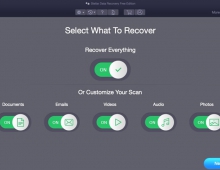
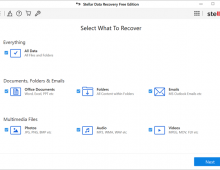
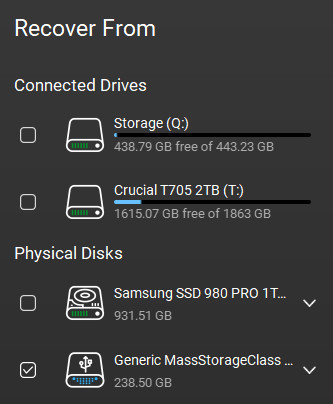
After all that let's see how the Recover process works. First, you need to select the type of data you want to recover under the ‘Select What to Recover’ option, it's better to leave all boxes ticked. Choose the desired location from ‘Recover From’ to retrieve the deleted data.
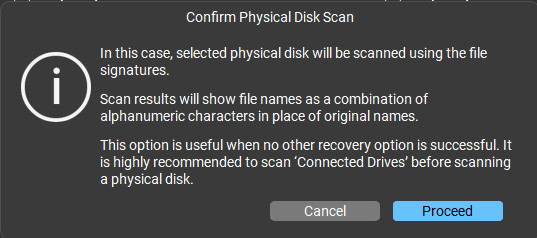
A prompt comes up warning us before scanning the disk
Click the scan option and it results in the list of files that are shown under ‘File Type,' ‘Tree View’ and ‘Deleted List'.
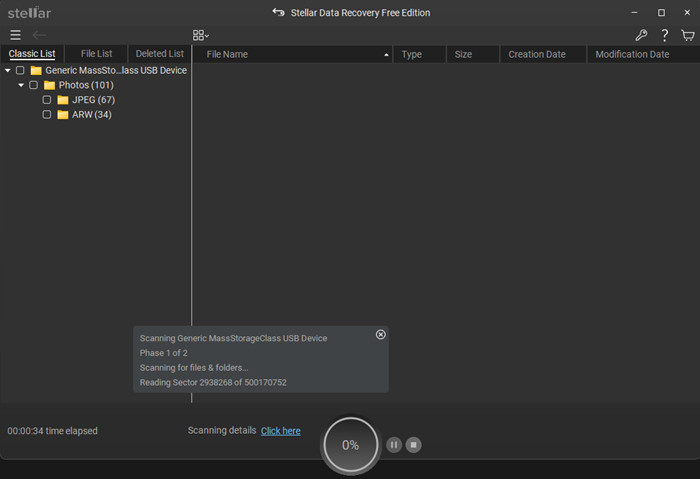
At the bottom there is a round % indicator, while the total remaining time estimation is absent:
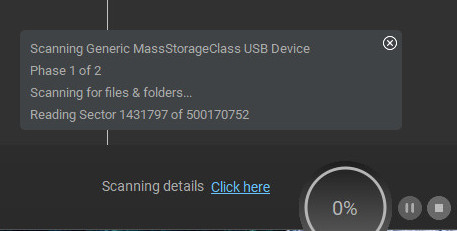
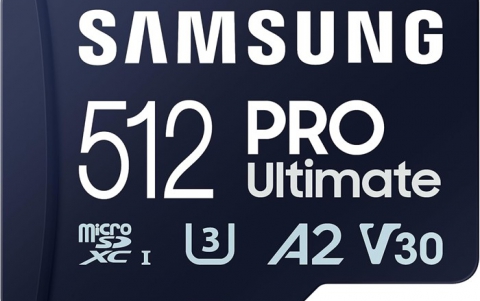
To scan a 256GB SD card, with an external USB 3.2 SD card reader, the whole process needed around 50mins. This may change (for better/worse) depending on your media reading speed and medium (NVME, SSD, HDD, SD) and of course the condition of the storage media (bad sectors for example).
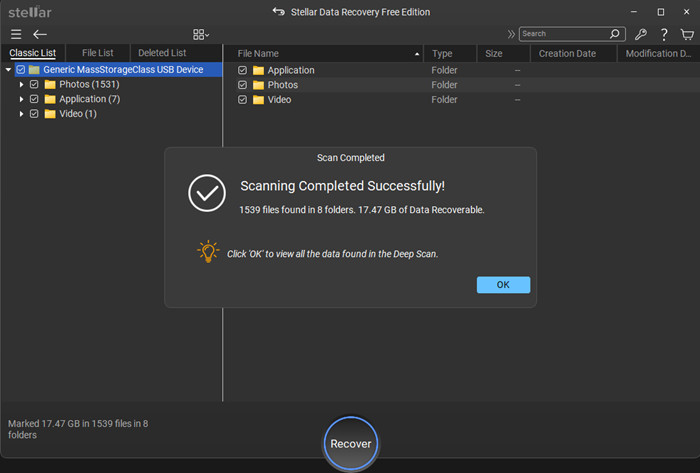
After the scan is finished, you can select the files/folders which you want to recover and click on the ‘Recover Button'. You can preview the files to check which one you are looking for, or simply select all of them and preview them later.
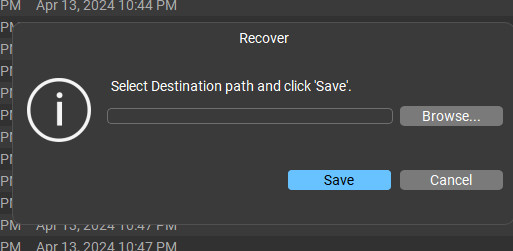
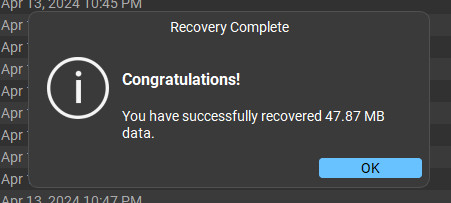
Save the recovered files by choosing a desired location. The recovery time depends upon the size of the hard disk or volume. If the scan is running that means the software is working and you would be required to wait for the scan process to complete. Once the process completes, you can save the recovered files at your desired location. You can recover a specific file, after the scan is complete, right-click the file and choose ‘Recover’. For our tests, we selected some pics and the recovery was very fast.
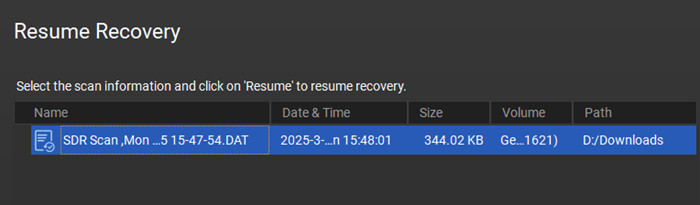
The software supports two (2) scan methods, quick/deep. Quick scan is a faster scanning option, which you can use to recover deleted files on Windows PC and from external drives. Deep scan is a bit slower but results are better than quick scan. Use it when the files are not recovered with Quick Scan. Deep scan facilitates file signature-based RAW recovery and recovers data from formatted, corrupt, and severely corrupt storage media. Users can also save the scan information to resume recovery at a later time.
The software supports exFAT, FAT (FAT16/FAT32), and NTFS partitions, at least for the free version. You can recover deleted email file data files from EMLX, PST, MSG, EDB, MBOX, NSF, GWI, EML, DBX, and other email file types. As was expected, users can recover images from internal HDD and external removable storage devices (pen drive, memory card, etc), just select the ‘Photos’ option from the ‘Select What to Recover' screen to search and recover only images from a removable media. Users cannot recover data from CDs or DVDs with the Free version until they buy the Professional software version. The software supports also all systems having a TPM chip since all modern systems support it as well as the Windows 11 operating system. There is a big online help database, you can check over here that will cover most of your questions and answers for the software.