
Breaking News

SAMA Introduces the S32 WOOD, a Compact M-ATX Case Bundled with an 80 PLUS Gold PSU Thypoch Completes Simera-C Cine Prime Lineup with New 100mm T1.9 Lens CORSAIR Launches the RM1200e Power Supply with Built-in PinProtect GPU Overcurrent Protection and Platinum-certified Efficiency CORSAIR Changes the Game with PureVector, a Science-Based Personalized Aiming Technology, Launching Exclusively in the SABRE v3 PRO PureVector Mouse Series AMD FSR Upscaling 4.1 Boosts Frames and Image Quality on More Devices

logo

  • Share Us
    • Facebook
    • Twitter
  • Home
  • Home
  • News
  • Reviews
  • Essays
  • About
    • Submit News

    • Contact Us
    • Privacy

    • Promotion
    • Advertise

    • RSS Feed

Search form

DVD Shrink simple guide

Mar 3,2004 0

5. Program Preferences


Review Pages

1. Introduction
2. Open files from DVD Drive
3. Open existing files from Hard Disk
4. Re-author
5. Program Preferences
6. Backup


DVD Shrink Guide - Page 5

Backup

After finishing with compression settings, it is time to backup the movie. First we select the Backup icon , and the following window will appear:
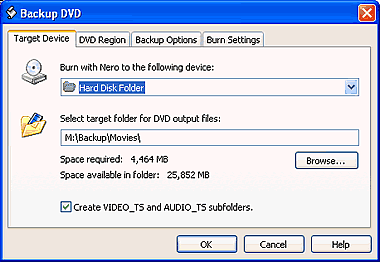
Here we can select to save our movie either on Hard Disk or on a blank media. For our example we set to Hard Disk Folder, which is most common. From the "Browse..." button we can define the destination folder. In case of media the folder for temporary files. Also it is good to check the box for creating VIDEO_TS and AUDIO_TS subfolder, especially in case of straight recording (on a media). So we press OK. Below is presented the window that we will see.
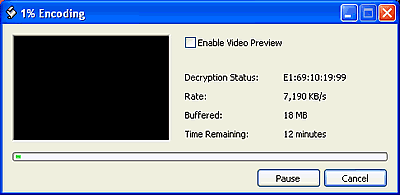
We don't recommend to enable video preview. As soon as the procedure is done you will be noticed, with the appropriate message.

Below are gathered some information for the other options, given from DVD Shrink while backup. Above we described the "Target Device" option, let's take a look of what are the other three options :

Here we can set the region code. We always prefer the Region Free option, since our movie will be playable no matter what region supports our player.
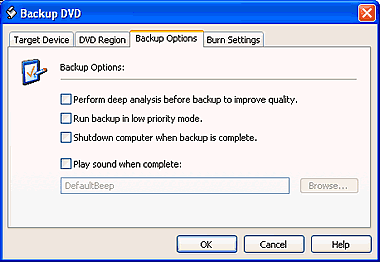
You can check the first box for deep analysis and better quality. Notice that with this option enabled the analyzing process takes more time, approximately 25 minutes.

The second option give us the opportunity to set the priority mode for DVD Shrink, if we are running several programs at the same time, multitasking.

If we want our PC to shut down after the backup process is finished, just enable the third option by checking the box.

Last, if there is any sound that we want to hear after the backup process is finished, check the fourth and define the folder that this sound is from the "Browse..." button.
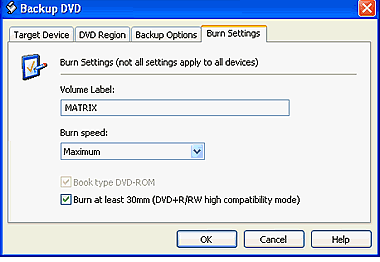
The burn setting are enable only in case that we have select in Target Device tab a recorder instead of Hard Disk. If you are about to burn a DVD+R/RW media, you can check the "Burn at least 30mm" box for higher compatibility. Also you can select to change book type from a DVD+R to DVD-ROM by checking the "Book type DVD-ROM" box.

In the following you can learn about some general setting of the software.


Review Pages

1. Introduction
2. Open files from DVD Drive
3. Open existing files from Hard Disk
4. Re-author
5. Program Preferences
6. Backup


Pages

  • « first
  • ‹ previous
  • 1
  • 2
  • 3
  • 4
  • 5
  • 6
  • next ›
  • last »

Tags:
Previous Post
Mitsumi DW-7872TE
Next Post
Teac DV-W58G

Related Posts

Latest Reviews

be quiet! Light Wings Pro IO fan
Cooling Systems

be quiet! Light Wings Pro IO fan

Why Intelligent Firmware Matters More Than Peak Throughput in NAS Systems
Enterprise & IT

Why Intelligent Firmware Matters More Than Peak Throughput in NAS Systems

Fanxiang MP83 M.2 NVMe SSD Enclosure
Enterprise & IT

Fanxiang MP83 M.2 NVMe SSD Enclosure

Ugreen CM642 USB4.0 Enclosure
PC components

Ugreen CM642 USB4.0 Enclosure

be quiet! Dark Power 14 IO
PC components

be quiet! Dark Power 14 IO

Popular News

MSI’s Latest AMD X870E MAX & EVO Series Motherboards

MSI’s Latest AMD X870E MAX & EVO Series Motherboards

COLORFUL Launches iGame B850M ULTRA Series Micro-ATX Motherboards

COLORFUL Launches iGame B850M ULTRA Series Micro-ATX Motherboards

COLORFUL Presents Limited Edition Chitu MAG-60 Magnetic Keyboard Inspired by the Year of the Horse

COLORFUL Presents Limited Edition Chitu MAG-60 Magnetic Keyboard Inspired by the Year of the Horse

COLORFUL Launches iGame B850I MINI OC V14 Motherboard

COLORFUL Launches iGame B850I MINI OC V14 Motherboard

COLORFUL Launches the iGame X870E VULCAN W OC Motherboard

COLORFUL Launches the iGame X870E VULCAN W OC Motherboard

COLORFUL Presents iGame Z890 ULTRA-S W and iGame Z890M ULTRA Z Motherboards

COLORFUL Presents iGame Z890 ULTRA-S W and iGame Z890M ULTRA Z Motherboards

COLORFUL Expands B850 Motherboard Lineup with New CVN, Battle-Ax, and MEOW Models

COLORFUL Expands B850 Motherboard Lineup with New CVN, Battle-Ax, and MEOW Models

ASRock Adds Support for One Sub-Channel DRAM Module on Intel DDR5 Motherboards

ASRock Adds Support for One Sub-Channel DRAM Module on Intel DDR5 Motherboards

Main menu

  • Home
  • News
  • Reviews
  • Essays
  • About
    • Submit News

    • Contact Us
    • Privacy

    • Promotion
    • Advertise

    • RSS Feed
  • About
  • Privacy
  • Contact Us
  • Promotional Opportunities @ CdrInfo.com
  • Advertise on out site
  • Submit your News to our site
  • RSS Feed