
Breaking News

Kioxia and Dell Technologies First to Deliver High-Density Server with 9.8 PB of Flash Storage ASUS Republic of Gamers Announces ROG NUC 16 Silicon Power Launches CreatePro Series Newtro Cooling Series and Next-Gen LCD Coolers at Computex 2026 Sony Announces the Launch of Xperia 1 VIII

logo

  • Share Us
    • Facebook
    • Twitter
  • Home
  • Home
  • News
  • Reviews
  • Essays
  • Forum
  • Legacy
  • About
    • Submit News

    • Contact Us
    • Privacy

    • Promotion
    • Advertise

    • RSS Feed
    • Site Map

Search form

DVD Shrink simple guide

Mar 3,2004 0

5. Program Preferences


Review Pages

1. Introduction
2. Open files from DVD Drive
3. Open existing files from Hard Disk
4. Re-author
5. Program Preferences
6. Backup


DVD Shrink Guide - Page 5

Backup

After finishing with compression settings, it is time to backup the movie. First we select the Backup icon , and the following window will appear:
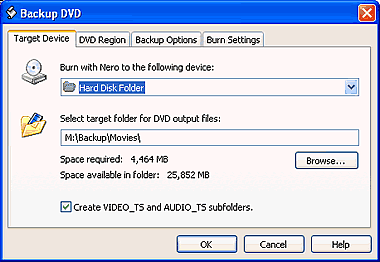
Here we can select to save our movie either on Hard Disk or on a blank media. For our example we set to Hard Disk Folder, which is most common. From the "Browse..." button we can define the destination folder. In case of media the folder for temporary files. Also it is good to check the box for creating VIDEO_TS and AUDIO_TS subfolder, especially in case of straight recording (on a media). So we press OK. Below is presented the window that we will see.
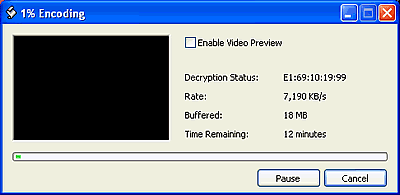
We don't recommend to enable video preview. As soon as the procedure is done you will be noticed, with the appropriate message.

Below are gathered some information for the other options, given from DVD Shrink while backup. Above we described the "Target Device" option, let's take a look of what are the other three options :

Here we can set the region code. We always prefer the Region Free option, since our movie will be playable no matter what region supports our player.
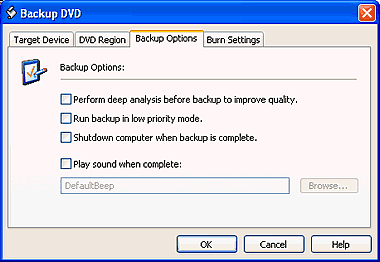
You can check the first box for deep analysis and better quality. Notice that with this option enabled the analyzing process takes more time, approximately 25 minutes.

The second option give us the opportunity to set the priority mode for DVD Shrink, if we are running several programs at the same time, multitasking.

If we want our PC to shut down after the backup process is finished, just enable the third option by checking the box.

Last, if there is any sound that we want to hear after the backup process is finished, check the fourth and define the folder that this sound is from the "Browse..." button.
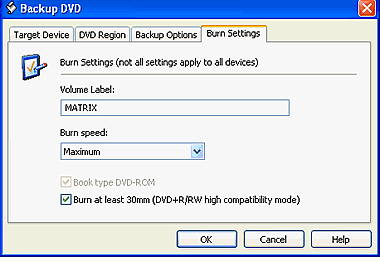
The burn setting are enable only in case that we have select in Target Device tab a recorder instead of Hard Disk. If you are about to burn a DVD+R/RW media, you can check the "Burn at least 30mm" box for higher compatibility. Also you can select to change book type from a DVD+R to DVD-ROM by checking the "Book type DVD-ROM" box.

In the following you can learn about some general setting of the software.


Review Pages

1. Introduction
2. Open files from DVD Drive
3. Open existing files from Hard Disk
4. Re-author
5. Program Preferences
6. Backup


Pages

  • « first
  • ‹ previous
  • 1
  • 2
  • 3
  • 4
  • 5
  • 6
  • next ›
  • last »

Tags:
Previous Post
Mitsumi DW-7872TE
Next Post
Teac DV-W58G

Related Posts

Latest Reviews

How Online Casinos Use Encryption, Verification, and Risk Controls to Build User Trust
Enterprise & IT

How Online Casinos Use Encryption, Verification, and Risk Controls to Build User Trust

Why Low-Latency Infrastructure Matters More Than Raw Specs
Enterprise & IT

Why Low-Latency Infrastructure Matters More Than Raw Specs

In the Age of AI Phishing, the Best User Experience Might Be the One That Feels Safest
Enterprise & IT

In the Age of AI Phishing, the Best User Experience Might Be the One That Feels Safest

SoundPeats C30
Consumer Electronics

SoundPeats C30

Why Streaming Live Casino Games Demands Smarter Tech
Enterprise & IT

Why Streaming Live Casino Games Demands Smarter Tech

Popular News

TEAMGROUP Launches EXPERT P34F Find My External SSD

TEAMGROUP Launches EXPERT P34F Find My External SSD

CORSAIR announces Vanguard Pro 96 and Vanguard 96 Gaming Keyboards

CORSAIR announces Vanguard Pro 96 and Vanguard 96 Gaming Keyboards

Samsung announces Galaxy Tab S11 and Galaxy S25 FE series

Samsung announces Galaxy Tab S11 and Galaxy S25 FE series

Viltrox Showcases Upcoming Lens Lineup and New TTL Flash at IBC 2025

Viltrox Showcases Upcoming Lens Lineup and New TTL Flash at IBC 2025

MSI Launches FORGE GK600 TKL WIRELESS Special Edition Compact Mechanical Keyboard

MSI Launches FORGE GK600 TKL WIRELESS Special Edition Compact Mechanical Keyboard

Panasonic Introduces the First Ultra-Telephoto Zoom Lens in the LUMIX S Series

Panasonic Introduces the First Ultra-Telephoto Zoom Lens in the LUMIX S Series

MSI Launches DATAMAG 40Gbps Magnetic Portable SSD

MSI Launches DATAMAG 40Gbps Magnetic Portable SSD

Viltrox Joins the L-Mount Alliance, Expanding Creative Possibilities

Viltrox Joins the L-Mount Alliance, Expanding Creative Possibilities

Main menu

  • Home
  • News
  • Reviews
  • Essays
  • Forum
  • Legacy
  • About
    • Submit News

    • Contact Us
    • Privacy

    • Promotion
    • Advertise

    • RSS Feed
    • Site Map
  • About
  • Privacy
  • Contact Us
  • Promotional Opportunities @ CdrInfo.com
  • Advertise on out site
  • Submit your News to our site
  • RSS Feed