
Breaking News

G.SKILL Showcases DDR5-9200 1.1V 16GBx2 High-Speed CU-DIMM Memory Kit Sony Introduces BRAVIA 9 II and BRAVIA 7 II RGB TVs and the BRAVIA Theatre Trio Creative Announces Sound Blaster AE-X Acer Expands Gaming Portfolio With Predator Atlas 8 Handheld Powered by Intel COLORFUL Presents Limited Edition iGame GeForce RTX 5070 Ultra OC 12GB x 007 First Light Edition

logo

  • Share Us
    • Facebook
    • Twitter
  • Home
  • Home
  • News
  • Reviews
  • Essays
  • Forum
  • Legacy
  • About
    • Submit News

    • Contact Us
    • Privacy

    • Promotion
    • Advertise

    • RSS Feed
    • Site Map

Search form

GEAR PRO v6.05 CD DVD Mastering edition

Dec 3,2003 0

4. Audio CD


Review Pages

1. Intoduction
2. DVD-Video
3. Erase RW
4. Audio CD
5. Video CD
6. Other


GEAR PRO CD/DVD Mastering software - Page 04

AudioCD

If we want to playback our favorite MP3 songs into our hi-fi system, which is not compatible with MP3 format, Gear can convert this format into another ( WAV) which is supported from most of the CD players. The basic difference between the converted song and the MP3 one is that the WAV is several times bigger than the MP3. So we can write approximately 12~18 ( depending of course on the songs size) Wav songs into a usual 700MB media.

First we have to choose the CD-Audio option from the drop-down menu in the main bar of GEAR, as in the screen shot below.

As soon as we press the "Create..." button we will see the following photo, where we must select again the CD-Audio option. Here we can also give a name to our CD project and define the disc size.
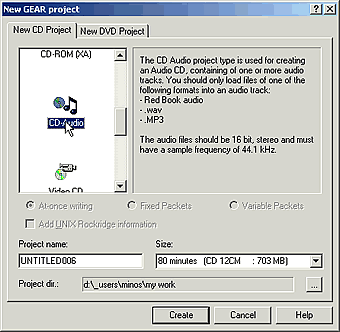
After we have adjusted those settings we press "Create". The next picture will be appear. Right after we should open the folder that contains the MP3 files we want to write. That is very easy, just use the explorer in the left
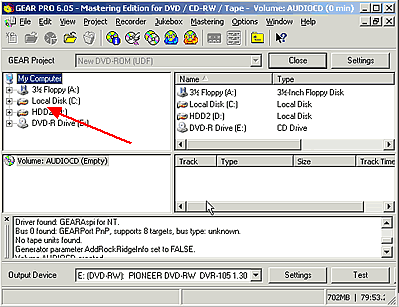
As soon as we find the MP3 files that we were looking for, with the drag'n'drop method we put them in the space as the arrow in the following picture.
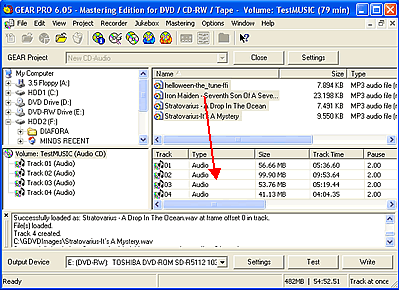
Gear automatically converts the .wav files to MP3. During this procedure we see the screen shot below.

The last thing we should do is to press the "Write" button for burning our disc. Otherwise we can make a virtual write by pressing the "Test" button. The next steps are the same as in Page 02.


Review Pages

1. Intoduction
2. DVD-Video
3. Erase RW
4. Audio CD
5. Video CD
6. Other


Pages

  • « first
  • ‹ previous
  • 1
  • 2
  • 3
  • 4
  • 5
  • 6
  • next ›
  • last »

Tags:
Previous Post
Cyberdrive DX082D DVD+RW
Next Post
Pioneer DVR-SK12D

Related Posts

Latest Reviews

Swit NP-FZ100 Battery
Cameras

Swit NP-FZ100 Battery

The Technology Stack Behind Modern Digital Gaming Platforms
Consumer Electronics

The Technology Stack Behind Modern Digital Gaming Platforms

be quiet! Dark Rock Pro 6
Cooling Systems

be quiet! Dark Rock Pro 6

How Online Casinos Use Encryption, Verification, and Risk Controls to Build User Trust
Enterprise & IT

How Online Casinos Use Encryption, Verification, and Risk Controls to Build User Trust

Why Low-Latency Infrastructure Matters More Than Raw Specs
Enterprise & IT

Why Low-Latency Infrastructure Matters More Than Raw Specs

Popular News

TEAMGROUP Launches EXPERT P34F Find My External SSD

TEAMGROUP Launches EXPERT P34F Find My External SSD

CORSAIR announces Vanguard Pro 96 and Vanguard 96 Gaming Keyboards

CORSAIR announces Vanguard Pro 96 and Vanguard 96 Gaming Keyboards

MSI Launches FORGE GK600 TKL WIRELESS Special Edition Compact Mechanical Keyboard

MSI Launches FORGE GK600 TKL WIRELESS Special Edition Compact Mechanical Keyboard

Samsung announces Galaxy Tab S11 and Galaxy S25 FE series

Samsung announces Galaxy Tab S11 and Galaxy S25 FE series

Viltrox Showcases Upcoming Lens Lineup and New TTL Flash at IBC 2025

Viltrox Showcases Upcoming Lens Lineup and New TTL Flash at IBC 2025

Panasonic Introduces the First Ultra-Telephoto Zoom Lens in the LUMIX S Series

Panasonic Introduces the First Ultra-Telephoto Zoom Lens in the LUMIX S Series

MSI Launches DATAMAG 40Gbps Magnetic Portable SSD

MSI Launches DATAMAG 40Gbps Magnetic Portable SSD

Viltrox Joins the L-Mount Alliance, Expanding Creative Possibilities

Viltrox Joins the L-Mount Alliance, Expanding Creative Possibilities

Main menu

  • Home
  • News
  • Reviews
  • Essays
  • Forum
  • Legacy
  • About
    • Submit News

    • Contact Us
    • Privacy

    • Promotion
    • Advertise

    • RSS Feed
    • Site Map
  • About
  • Privacy
  • Contact Us
  • Promotional Opportunities @ CdrInfo.com
  • Advertise on out site
  • Submit your News to our site
  • RSS Feed