Xtreamer Pro Media Player Review
7. Playing Media files
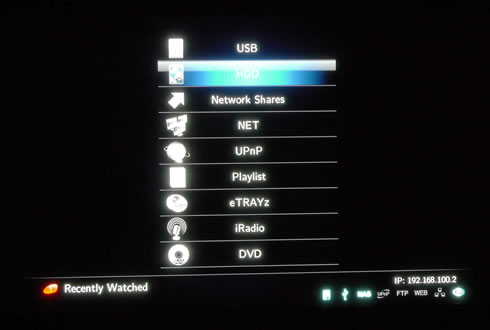
In order to start playback media files you have to enter at the Media Library menu first. Here you should select the source of your media files (USB, HDD, Network, etc.). Of course the available media sources depend on the way you have set the player up. Here is our options:
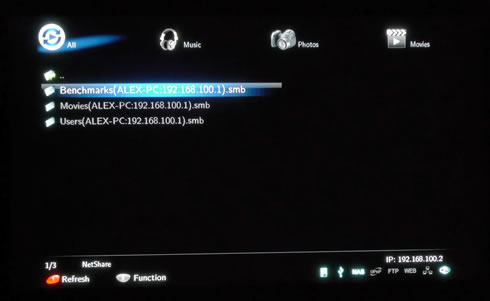
If your file comes from a network shared source, you can easily locate it and add it to your "Favorites" by pressing the "8" button of the remote control:
If your media source is a USB device connected to the player, you can access the files easily and navigate within them by using the 4-way navigation keys on the remote control:
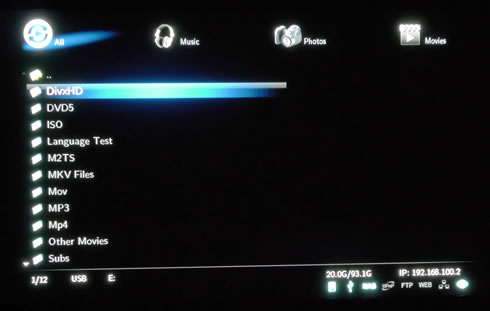
Navigating across non-english folders is not a problem since the player supports 23 different languages. Here is an example with folders named using Greek characters:

We have selected a .divx video file. Right after the selection, a preview window comes appears to the right (this can be disabled under the settings area). Pressing the enter key will immediately start playing the selected file to your connected TV:
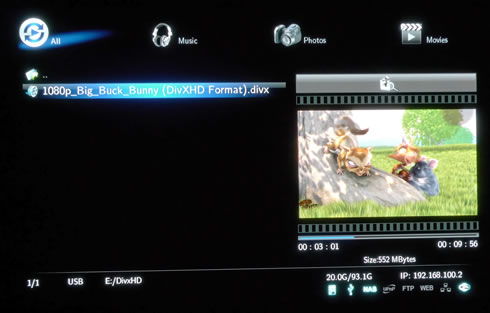
We tested the compatibility of the player with many different files. The Xtreamer Pro player was able to playback even the latest Dolby DTS-TrueHD 7.1 files downmixed to 2.1Channel through the HDMI:


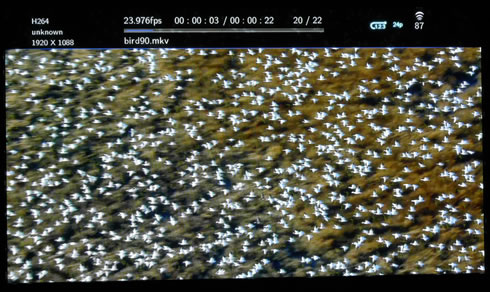
We also noticed a 90mbps .mts video file (bird90.m2ts) was fully playable. On the other hand, the same file encoded in the .mkv format (bird90.mkv) and stored to a USB flash drive could not be playbacked correctly, as you see in the screen shot below:
Playback of bird90.m2ts file

In fact, any .mkv file stored in our USB flash drive with a bitrate higher than the 60mbps (above fbird60.mkv) has some picture quality issues during playback. When we transferred the same files to the system's HDD, the playback issues were limited to the bird90.mkv file (90 mbps). This means that the USB port of the player most probably introduces these playback issues:
Playback of bird90.mkv file
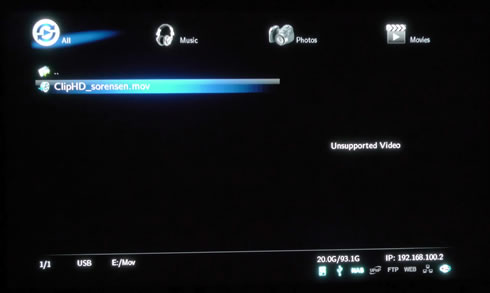
A message will come in case you select an unsupported video file:
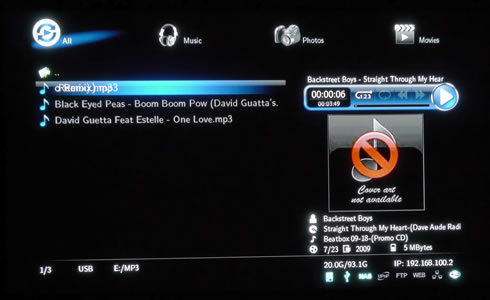
The player is also fully compatible with audio mp3 files and also provides extended information using the file's mp3 id tags.
When video playback begins, the player will automatically adjusting the size and position of the screen. However, in case you experience any problems, you have to press the ZOOM button (4) on your remote control to adjust the position of movie screen (scale):
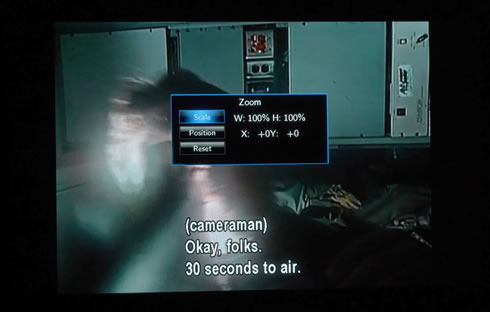
For the video file below, we had to set the Width (W) to 126%. But when we tried to playback the same file again the Xtreamer Pro did not "remember" our ZOOM settings:

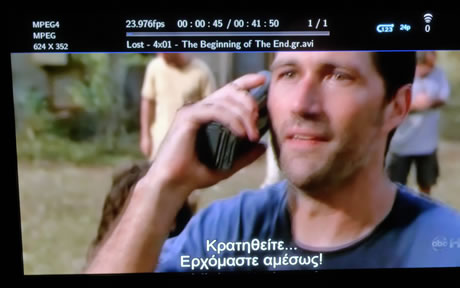
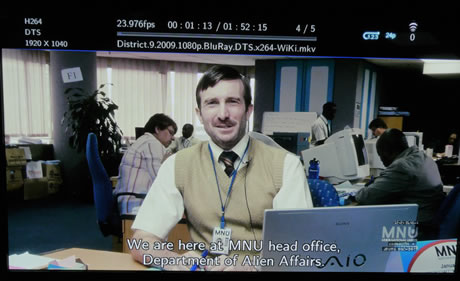
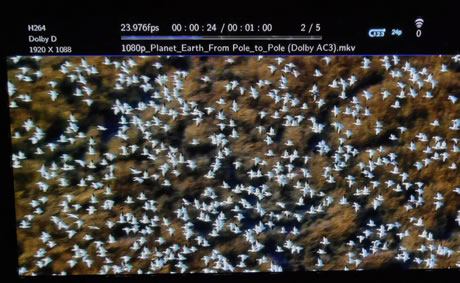
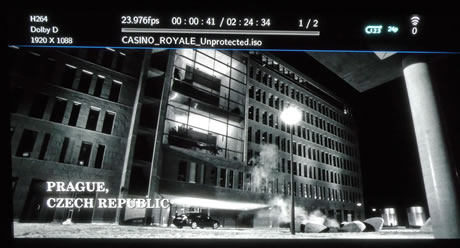
Information about the selected video file is available at the top side of the screen during playback. Rewind and Forward functions are enabled with "0.8X/1.1 X/1.2 X/1.5 X/2 X/4 X/8 X/16 X/32 X" speeds as well as music file is enabled with 2X speed control. These functions are accessible trough the up/down keys. Pushing these keys during playback will result to a skip function of 3 minutes forward or 1 minute backwards. Using the left/right keys will skip the movie 10 seconds backwards or 30 seconds forward, respectively. That's not the most convenient implementation we have ever experienced with a media player although it works without any problems:

The player also supports playback of DVD ISOs (not CSS decrypted):
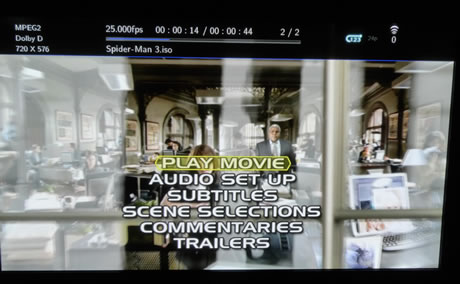
The same applies for Blu-Ray ISO images. Decrypted files will not give you access to any menus and only the main video (movie) file will be accessible:
The player will automatically recognize the subtitles and display them properly. You can still adjust their font, color or position: