Breaking News

COLORFUL Unveils New iGame M15 and M16 Origo Gaming Laptops at COMPUTEX 2026 GIGABYTE Showcases Sleek STEALTH and Elegant WOOD PC Builds at COMPUTEX 2026 GIGABYTE Showcases Industry-leading CQDIMM Performance and Ecosystem Expansion at COMPUTEX 2026 G.SKILL Demos Trident Z5 NeoX RGB Series DDR5 with AMD EXPOT Technology NVIDIA and Microsoft Reinvent Windows PCs for the Age of Personal AI

logo

  • Share Us
    • Facebook
    • Twitter
  • Home
  • Home
  • News
  • Reviews
  • Essays
  • Forum
  • Legacy
  • About
    • Submit News

    • Contact Us
    • Privacy

    • Promotion
    • Advertise

    • RSS Feed
    • Site Map

Search form

ASUS CT-479

Apr 13,2006 0

2. Installation


Review Pages

1. Introduction
2. Installation
3. Performance
4. Conclusion


- Installation

What we need for the installation is a screwdriver and some patience, especially if your motherboard does not have the latest BIOS release. You need to do download the latest BIOS revision using the Asus Updater and then install it with the same utility. After the process is completed, you can safely move on to removing your CPU and installing the CT-479 adapter.
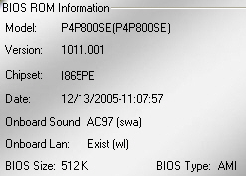
At the time we carried out this review of the adapter, the latest BIOS revision for our motherboard was v1011. Here are some screen shots from CPU-Z for our Pentium M CPU (which we used with the adapter once it was installed) and P4P800SE motherboard.
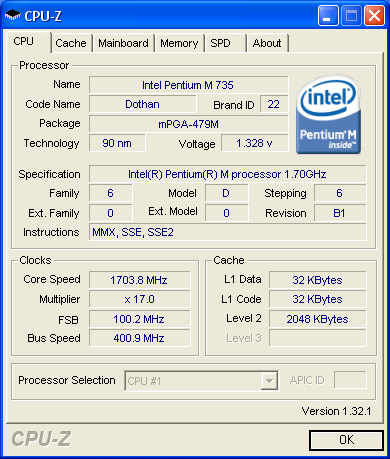
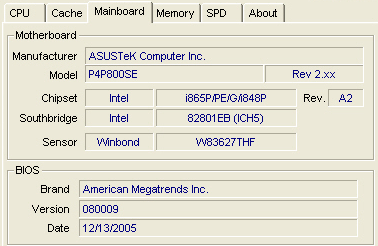
After you're through with the BIOS update, you can start installing the adapter. There are several steps involved, but if you are careful and patient, all should go well.

1. First, remove the original CPU and of course, clean off any thermal compound left in the CPU mounting area...
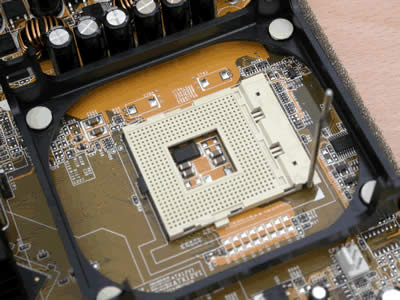
2. Now take the adapter and place it in front of you on a flat surface, so you can install the M series CPU on the adapter...

3. You will notice that the Adapter has a screw that locks the CPU in place, preventing it from moving.. You may also notice that the Adapter (or parts of it) are manufactured by FOXCONN, as labeled on the CPU holder...
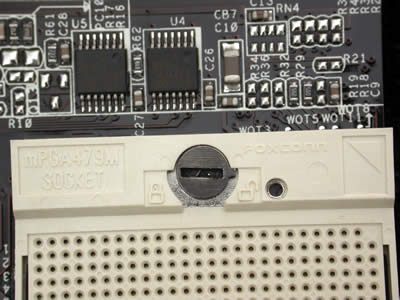
4. Fasten the CPU onto the holder with the aid of a flat screwdriver. Make sure you fasten it in, but don't apply too much pressure and damage the unit.

5. In the image below, you can see the adapter mounted in the motherboard's CPU socket. Now that the adapter and CPU are in place, we can proceed with the installation of the cooler and power cables.
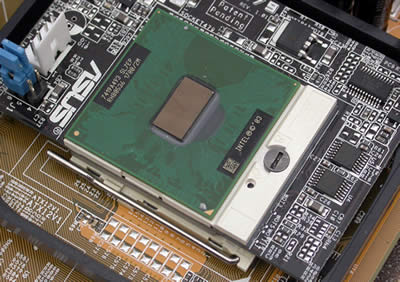
6. Normally, this step is not required as the thermal compound is already on the cooler. But if you ever have to remove and re-install your adapter, you'll have to apply thermal compound on the M CPU, just as you do with standard CPU installations.

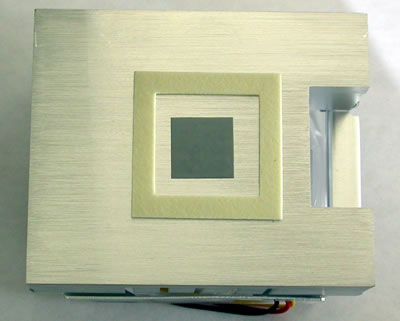
7. As already stated, there's a thermal compound pad already on the cooler by default, and all the user has to do, is remove the protective strip off the cooler to reveal the compound as shown in the photo below.
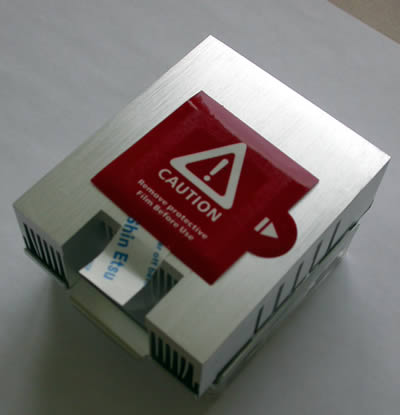
8. In the following screenshot, we can see the copper base with the thermal compound for the cooler, included in the Adapter CT-479 bundle.
9. Next, is the power supply input (for the cooler) and the FSB jumpers, which as previously discussed, can be configured by the user for 400MHz or 533MHz FSB frequency.

10. We then plug in the power cable for the adapter and mount the cooler. Note here, that this is not necessary plug in the power cables at this point, since they can be connected after the cooler has been mounted.

11. Almost done. The cooler is mounted on the CPU (remember to remove the protective strip off the bottom side of the cooler protecting the thermal compound). Once the cooler is in position, use the two retention clips to fasten and secure it to the adapter..

12. Both ends of the retention clips are fastened likewise.

13. Up and ready. In only a few minutes, we managed to complete the installation, without too much hassle. The hardest part is probably updating the BIOS on your motherboard.

Having completed the installation of the CT-479 Adapter, we move on to see how it performs and compare it with the Intel P4 2.8 Prescott CPU.


Review Pages

1. Introduction
2. Installation
3. Performance
4. Conclusion


Pages

  • « first
  • ‹ previous
  • 1
  • 2
  • 3
  • 4
  • next ›
  • last »

ASUS

Tags: ASUS
Previous Post
LiteOn LVW-5055GDL+
Next Post
Pioneer DVR-111DBK

Related Posts

  • ASUS Announces T1 GeForce RTX 5070 and RTX 5060 Ti Graphics Cards

  • ASUS Announces ProArt GeForce RTX 5090 Graphics Card

  • ASUS Announces ProArt Display OLED PA27USD and PA32USD

  • ASUS Announces TUF Gaming Platinum Power Supply Series

  • ASUS Announces ProArt PA40SU USB4 SSD Enclosure

  • ASUS Showcases Comprehensive AI-Powered Creator Workflows at NAB Show 2026

  • ASUS Announces ProArt Router PRT-BE5000 and ProArt Switch PQG-U1080

  • ASUS Announces Intel Core Ultra 200S Plus Series Support on W880, Z890, Q870, B860 and H810 Motherboards

Latest Reviews

Swit NP-FZ100 Battery
Cameras

Swit NP-FZ100 Battery

The Technology Stack Behind Modern Digital Gaming Platforms
Consumer Electronics

The Technology Stack Behind Modern Digital Gaming Platforms

be quiet! Dark Rock Pro 6
Cooling Systems

be quiet! Dark Rock Pro 6

How Online Casinos Use Encryption, Verification, and Risk Controls to Build User Trust
Enterprise & IT

How Online Casinos Use Encryption, Verification, and Risk Controls to Build User Trust

Why Low-Latency Infrastructure Matters More Than Raw Specs
Enterprise & IT

Why Low-Latency Infrastructure Matters More Than Raw Specs

Popular News

TEAMGROUP Launches EXPERT P34F Find My External SSD

TEAMGROUP Launches EXPERT P34F Find My External SSD

CORSAIR announces Vanguard Pro 96 and Vanguard 96 Gaming Keyboards

CORSAIR announces Vanguard Pro 96 and Vanguard 96 Gaming Keyboards

MSI Launches FORGE GK600 TKL WIRELESS Special Edition Compact Mechanical Keyboard

MSI Launches FORGE GK600 TKL WIRELESS Special Edition Compact Mechanical Keyboard

Samsung announces Galaxy Tab S11 and Galaxy S25 FE series

Samsung announces Galaxy Tab S11 and Galaxy S25 FE series

Viltrox Showcases Upcoming Lens Lineup and New TTL Flash at IBC 2025

Viltrox Showcases Upcoming Lens Lineup and New TTL Flash at IBC 2025

Panasonic Introduces the First Ultra-Telephoto Zoom Lens in the LUMIX S Series

Panasonic Introduces the First Ultra-Telephoto Zoom Lens in the LUMIX S Series

MSI Launches DATAMAG 40Gbps Magnetic Portable SSD

MSI Launches DATAMAG 40Gbps Magnetic Portable SSD

Viltrox Joins the L-Mount Alliance, Expanding Creative Possibilities

Viltrox Joins the L-Mount Alliance, Expanding Creative Possibilities

Main menu

  • Home
  • News
  • Reviews
  • Essays
  • Forum
  • Legacy
  • About
    • Submit News

    • Contact Us
    • Privacy

    • Promotion
    • Advertise

    • RSS Feed
    • Site Map
  • About
  • Privacy
  • Contact Us
  • Promotional Opportunities @ CdrInfo.com
  • Advertise on out site
  • Submit your News to our site
  • RSS Feed