Primera Bravo Disc Publisher
2. Identifying the parts
PRIMERA BRAVO OPTICAL PUBLISHING SYSTEM - Page 2
Identifying the parts
The following illustration shows the Publisher, its Control Panel, the Buttons, LED indicator lights, Input and Output Bins and other components.
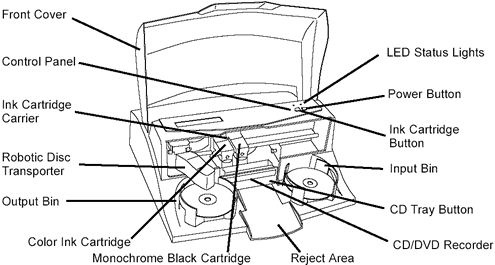
The Robotic Disc Transporter moves the discs from the Input Bin, to a CD/DVD
Recorder, next to the printer, and finally to the Output Bin. Hence, the CD/DVD
Recorder is automatically loaded and unloaded by the Publisher's Robotic Disc
Transporter.
The Recorder Tray Button manually opens or closes the Recorder Tray. Under normal
operation, the in/out movement of the Recorder Tray is controlled automatically
and this button is not used.
The Control Panel contains LED Status Lights and Buttons to control the Publisher.
These indicate that Power is ON. They also blink in certain patterns to indicate
an error or other exceptional condition of the unit. The following table explains
briefly these conditions.
|
Power LED
|
LED
|
Publisher
|
| on solid | off | Is ready to receive job |
| on solid | on solid | Has received a job and is waiting for the Robotic Disc Transporter to load a disc |
| both lights are blinking alternately with one another | Waiting for a cartridge to be installed and the lid to be closed. | |
| on solid | flashing rapidly | The printer tray or ink cartridge carrier has stalled. Press the Ink button to retry the operation. |
| flashing rapidly | on solid | The Publisher has a cartridge problem. Check to make certain that the cartridges are installed correctly and that the bar code labels on the underside of the cartridge are not damaged. |
| repeating pattern of both lights flashing in unison, then one light momentarily on solid. | This indicates low ink warning. If the left light stays solid after the flash, the Color cartridge is low. If the right light stays on after the flash, the Black Monochrome cartridge should be replaced. | |
 The
Power Button turns the Publisher's power ON and OFF. When the front cover is
opened, the "Ink Cartridge Button" is used to position the Cartridge
Carrier for easy ink cartridge replacement.
The
Power Button turns the Publisher's power ON and OFF. When the front cover is
opened, the "Ink Cartridge Button" is used to position the Cartridge
Carrier for easy ink cartridge replacement.
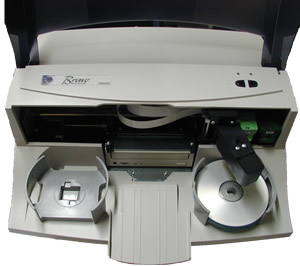
The Input/Output Bins are situated under the top cover of the Publisher. The
bins will hold up to 25 discs each. The right-side bin is the Input Bin for
blank media; the left-side bin is the Output Bin for finished discs.
The Reject Area is where discs are dropped if they do not pass a software verification
test. The discs slide down the ramp, out in front of your Publisher.
 The
Front Cover is a durable plastic cover that will protect the Publisher from
dust and interference.
The
Front Cover is a durable plastic cover that will protect the Publisher from
dust and interference.
The Ink Cartridge Carrier holds both a color ink cartridge (left side pen) and
a monochrome ink cartridge (right-side pen).
The input ports found on the rear panel of the Publisher are the following:

The FireWire (IEEE 1394) Port receives data that is to be passed on to the
recording drive from a PC.
The USB Interface is connected to an open USB port on your PC with a standard
USB cable, included with your Publisher.
The Power Input Port connects to the included 100V~240V, 12V switching power
supply.