Breaking News

TerraMaster Launches Storage Upgrade Season with Up to 30% Off During Prime Big Deal Days COLORFUL Launches iGame Guard G114 140W GaN Multi-Port Charger INNO3D TOWER WORKSTATION AWS-511Z-R1 Thermal Grizzly and Noctua introduce WireView Pro II Noctua Edition GPU monitoring device Nikon releases the Z5IIC full-frame mirrorless camera

logo

  • Share Us
    • Facebook
    • Twitter
  • Home
  • Home
  • News
  • Reviews
  • Essays
  • About
    • Submit News

    • Contact Us
    • Privacy

    • Promotion
    • Advertise

    • RSS Feed

Search form

Xtreamer Pro Media Player Review

Oct 21,2010 0

9. Jukebox


Review Pages

1. Features
2. Specifications
3. A closer look
4. Powering up the player, Firmware update
5. Installing a HDD
6. Settings
7. Playing Media files
8. Internet services
9. Jukebox
10. Wireless LAN Setup
11. Final words


Another neat feature of the Xtreamer Pro media player is the the Jukebox function. The service will download information about movies, pictures etc.

First you need to install the Jukebox function, as we mentioned in the previous page. Then press the "MENU" (6) button on your remote control and the Jukebox tab will appear at the main menu of the player. Here you can select among the provided content categories, which are Movies, Series, Pictures and Music. We selected the Movies category:
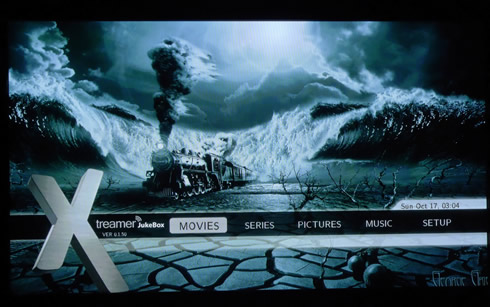
We should remind you here that the JukeBox function is just gathering content stored in your connected devices and provides information for them. It does not download any video/audio content from the internet, besides some information for your multimedia stored files. So the first thing to do in order to use the function is to select the local or network sources for the content you wish to add to the JukeBox. We selected a network movie folder and add it to favorites:

The JukeBox will scan the selected folders for related files and import them. The procedure starts with a wizard that allows you to make some additional settings:
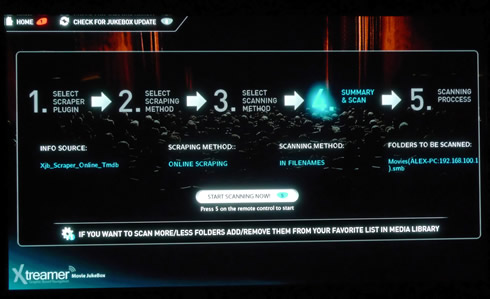
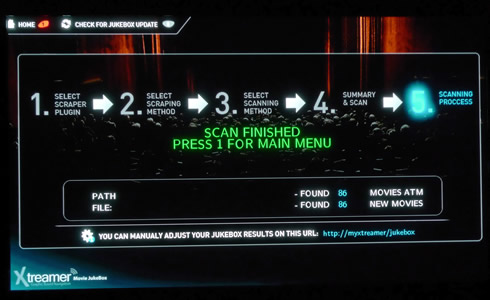
Scanning takes some time and below you see the results:
Here is how the JukeBox presents the movies you have imported to it:

You may change the way this information is displayed here, according to your flavor. We assume that it's better to have each movie stored in its own folder, since the Jukebox will download (internet) and locally store many files related to each movie to the same folder.

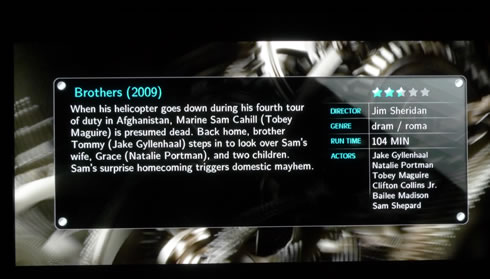
The information for any movie gathered by JukeBox can be also displayed on your screen during movie playback using the "Info" button of your remote control:
The information for each file you have imported to the Jukebox can be accessed and modified in a local address at http://myxtreamer:


Review Pages

1. Features
2. Specifications
3. A closer look
4. Powering up the player, Firmware update
5. Installing a HDD
6. Settings
7. Playing Media files
8. Internet services
9. Jukebox
10. Wireless LAN Setup
11. Final words


Pages

  • « first
  • ‹ previous
  • …
  • 3
  • 4
  • 5
  • 6
  • 7
  • 8
  • 9
  • 10
  • 11
  • next ›
  • last »

Xtreamer

Tags: Xtreamer
Previous Post
Optiarc AD 7260S review
Next Post
Thermaltake Massive 23 LX Notebook cooler

Related Posts

Latest Reviews

Fanxiang MP83 M.2 NVMe SSD Enclosure
Enterprise & IT

Fanxiang MP83 M.2 NVMe SSD Enclosure

Ugreen CM642 USB4.0 Enclosure
PC components

Ugreen CM642 USB4.0 Enclosure

be quiet! Dark Power 14 IO
PC components

be quiet! Dark Power 14 IO

SanDisk High Endurance 512GB microSDXC
Cameras

SanDisk High Endurance 512GB microSDXC

Samsung PRO Ultimate 512GB microSDXC
Cameras

Samsung PRO Ultimate 512GB microSDXC

Popular News

MSI’s Latest AMD X870E MAX & EVO Series Motherboards

MSI’s Latest AMD X870E MAX & EVO Series Motherboards

COLORFUL Launches iGame B850M ULTRA Series Micro-ATX Motherboards

COLORFUL Launches iGame B850M ULTRA Series Micro-ATX Motherboards

COLORFUL Presents Limited Edition Chitu MAG-60 Magnetic Keyboard Inspired by the Year of the Horse

COLORFUL Presents Limited Edition Chitu MAG-60 Magnetic Keyboard Inspired by the Year of the Horse

COLORFUL Presents iGame Z890 ULTRA-S W and iGame Z890M ULTRA Z Motherboards

COLORFUL Presents iGame Z890 ULTRA-S W and iGame Z890M ULTRA Z Motherboards

COLORFUL Launches iGame B850I MINI OC V14 Motherboard

COLORFUL Launches iGame B850I MINI OC V14 Motherboard

COLORFUL Expands B850 Motherboard Lineup with New CVN, Battle-Ax, and MEOW Models

COLORFUL Expands B850 Motherboard Lineup with New CVN, Battle-Ax, and MEOW Models

ASRock Adds Support for One Sub-Channel DRAM Module on Intel DDR5 Motherboards

ASRock Adds Support for One Sub-Channel DRAM Module on Intel DDR5 Motherboards

Exceed the Infinite with New ASRock X870E Taichi White Motherboard

Exceed the Infinite with New ASRock X870E Taichi White Motherboard

Main menu

  • Home
  • News
  • Reviews
  • Essays
  • About
    • Submit News

    • Contact Us
    • Privacy

    • Promotion
    • Advertise

    • RSS Feed
  • About
  • Privacy
  • Contact Us
  • Promotional Opportunities @ CdrInfo.com
  • Advertise on out site
  • Submit your News to our site
  • RSS Feed